Get Started in 30 Seconds
- Install SonicMeet from the Chrome Web Store and pin the icon.
- Sign in with Google when the popup opens.
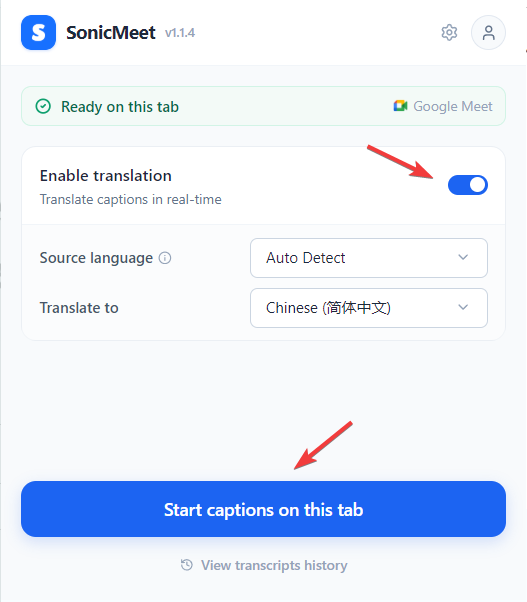
- Open your meeting, click the SonicMeet icon, pick your languages, and hit Start.
That's it. Captions appear on the meeting page within a second or two.
The Caption Overlay
A floating panel appears on your meeting page once you start. You can drag it by the top bar, resize it from any edge, and it follows you into fullscreen automatically.
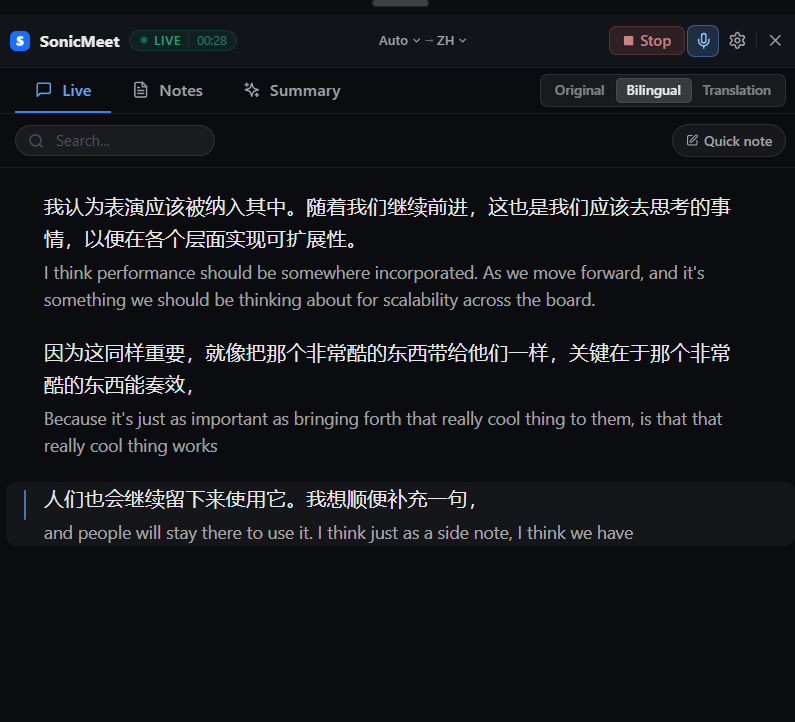
It has three tabs:
- Live — captions stream in as people speak. Toggle between Original / Bilingual / Translation in the top bar. Hover any line to star it, copy it, or attach a note. Use the search box to jump to any earlier line.
- Notes — type quick notes during the call, or anchor a note to a specific caption line.
- Summary — click Generate to get an AI summary in your chosen language. Output is split into Executive Summary, Key Points, Action Items, and Decisions. You can regenerate, copy, or export it.
Your own voice
Click the microphone icon in the top bar to include your own voice in the transcript — useful when you also want captions for your own voice. The first time you enable it, Chrome asks for microphone permission on a separate page; grant it once and the setting persists.
To stop captioning, click Stop
Overlay settings
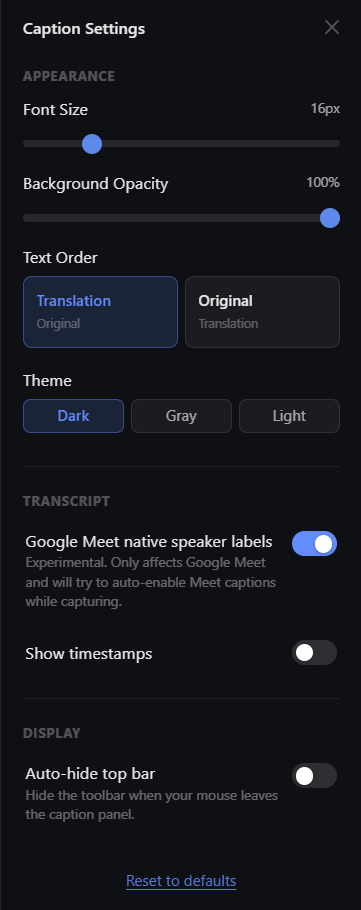
Click the gear icon in the top bar to open the settings panel.
- Appearance — font size, background opacity, theme (Dark / Gray / Light), and Text Order to swap original vs. translation when you're in Bilingual mode.
- Transcript — toggle Show timestamps, or turn on Google Meet native speaker labels (experimental, Google Meet only — it auto-enables Meet's built-in captions while you capture so it can read the speaker names).
- Display — Auto-hide top bar hides the overlay's toolbar when your mouse leaves the panel, so only the captions stay visible.
Hit Reset to defaults at the bottom to revert everything.
History
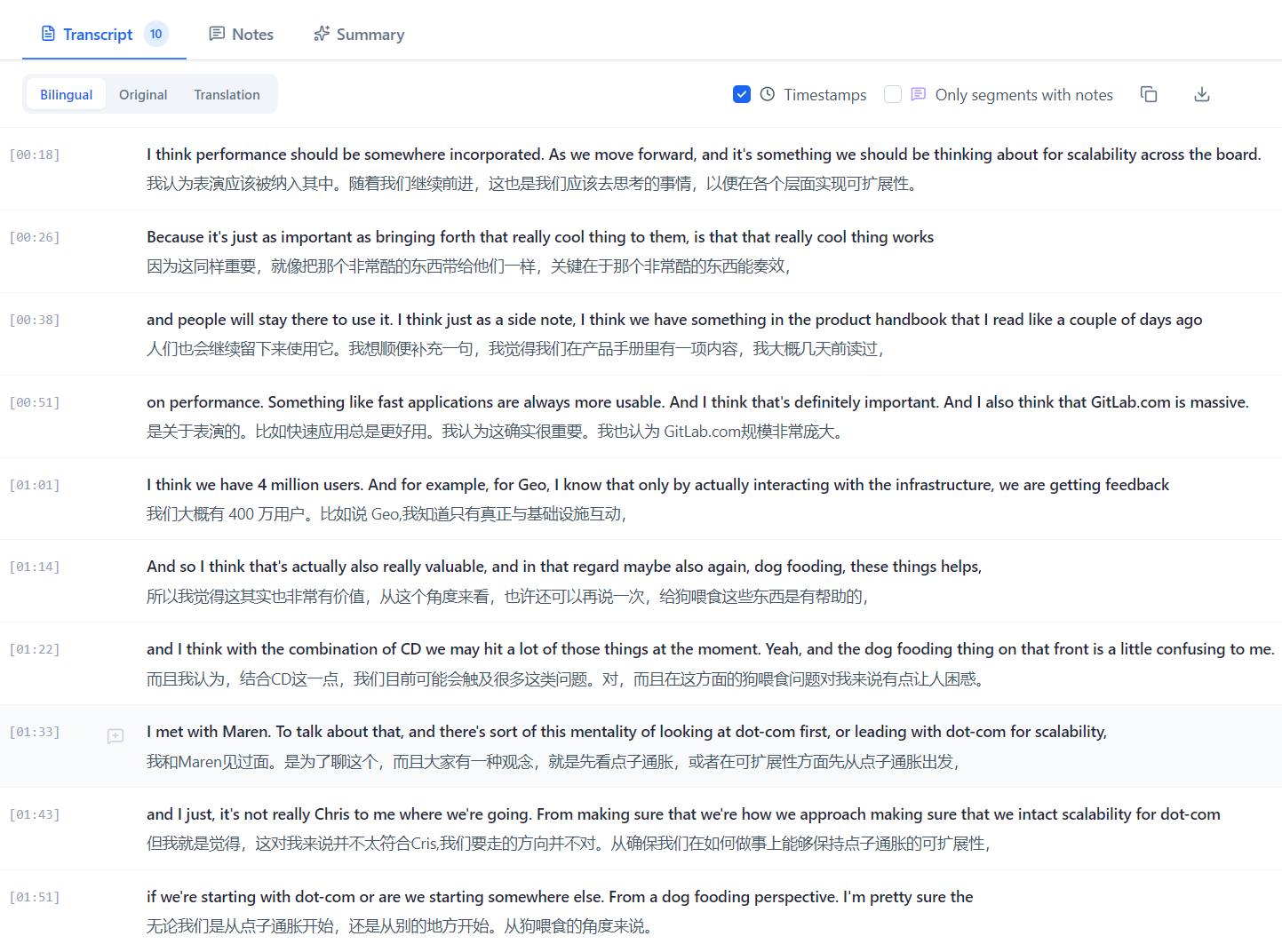
Every session is saved to your account. Open the History page from the popup menu to revisit, search, export (.txt or .md), or delete past meetings — including their notes and summaries.
Settings
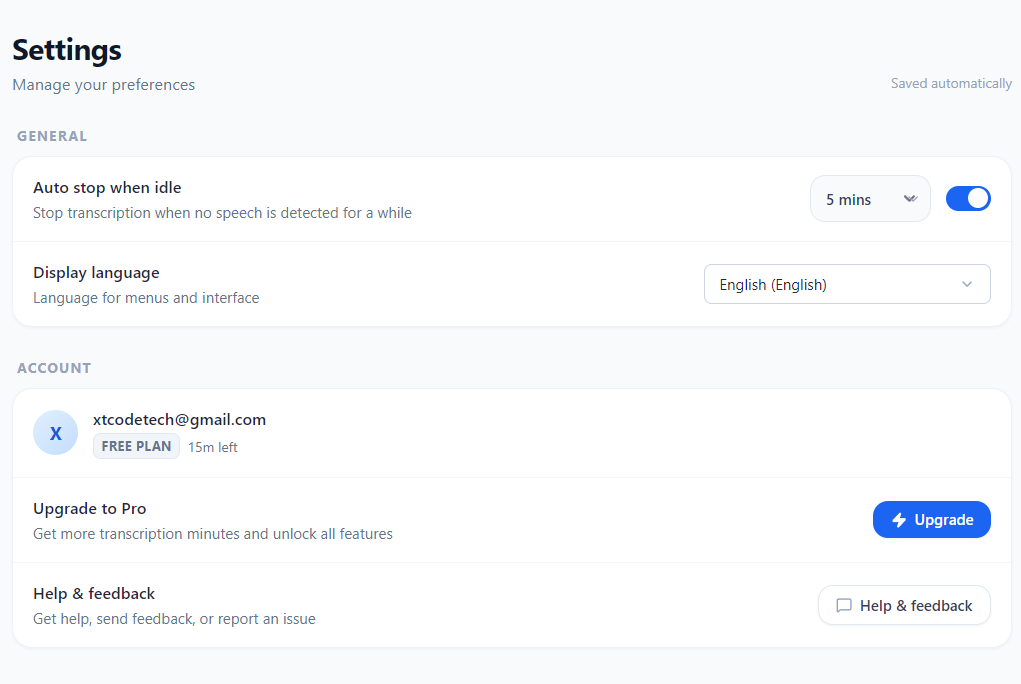
Open the popup (extension icon) to configure extension-level behavior:
- Auto-stop when idle — automatically end the session after 5, 10, or 15 minutes of silence, so you don't accidentally burn minutes after a meeting wraps up.
- Display language — change the language of the popup menu and interface. This is independent of your caption source / target languages.
Your remaining caption minutes show in the popup header, and your remaining summary credits show on the Summary tab. See sonicmeet.app for current plans and quotas.
Plans
SonicMeet is priced by meeting hours. Start free; upgrade only when you need more time.
| Plan | Price (monthly) | Meeting hours / month | AI summaries / month |
|---|---|---|---|
| Free | $0 | 20 minutes | 3 |
| Starter | $10 | 5 hours | 20 |
| Pro | $20 | 15 hours | 60 |
| Power | $39 | 40 hours | 200 |
| Ultra | $79 | 90 hours | 500 |
| Team | Contact us | Shared pool | Shared pool |
Paying yearly saves ~17% on Starter / Pro / Power / Ultra. The Team plan gives you seat management and a shared hour pool across your organization — good for rolling SonicMeet out to a whole team.
See sonicmeet.app for up-to-date pricing and quotas.
Languages
- UI: English, 简体中文, 繁體中文, 日本語, 한국어, Français, Deutsch, Español, Português, Українська, Русский.
- Captions & translation: 60+ languages, including auto-detect for the source.
FAQ
Does SonicMeet record audio? No. Audio is processed in real time and never stored. Only the resulting transcript, your notes, and your summaries are saved.
Can other people in the meeting see I'm using it? No. The overlay is rendered locally in your browser and is invisible to everyone else.
Can I use it on multiple devices? Yes — sign in with the same Google account and your history follows you everywhere. But only one active session at a time: if you hit Start on a second device, captioning on the first will stop.