Signing In
Team and Enterprise plans are set up by us. Contact us to get started — we provision the plan and add your team owner in the backend. From there the owner can invite admins and members on the Members page.
The dashboard lives at sonicmeet.app/team. Sign in with the Google account that belongs to your team. Only owners and admins can open the dashboard — it's where seats, members, vocabulary, and usage are managed. Regular members don't sign in here; they simply use SonicMeet with their team seat.
Overview
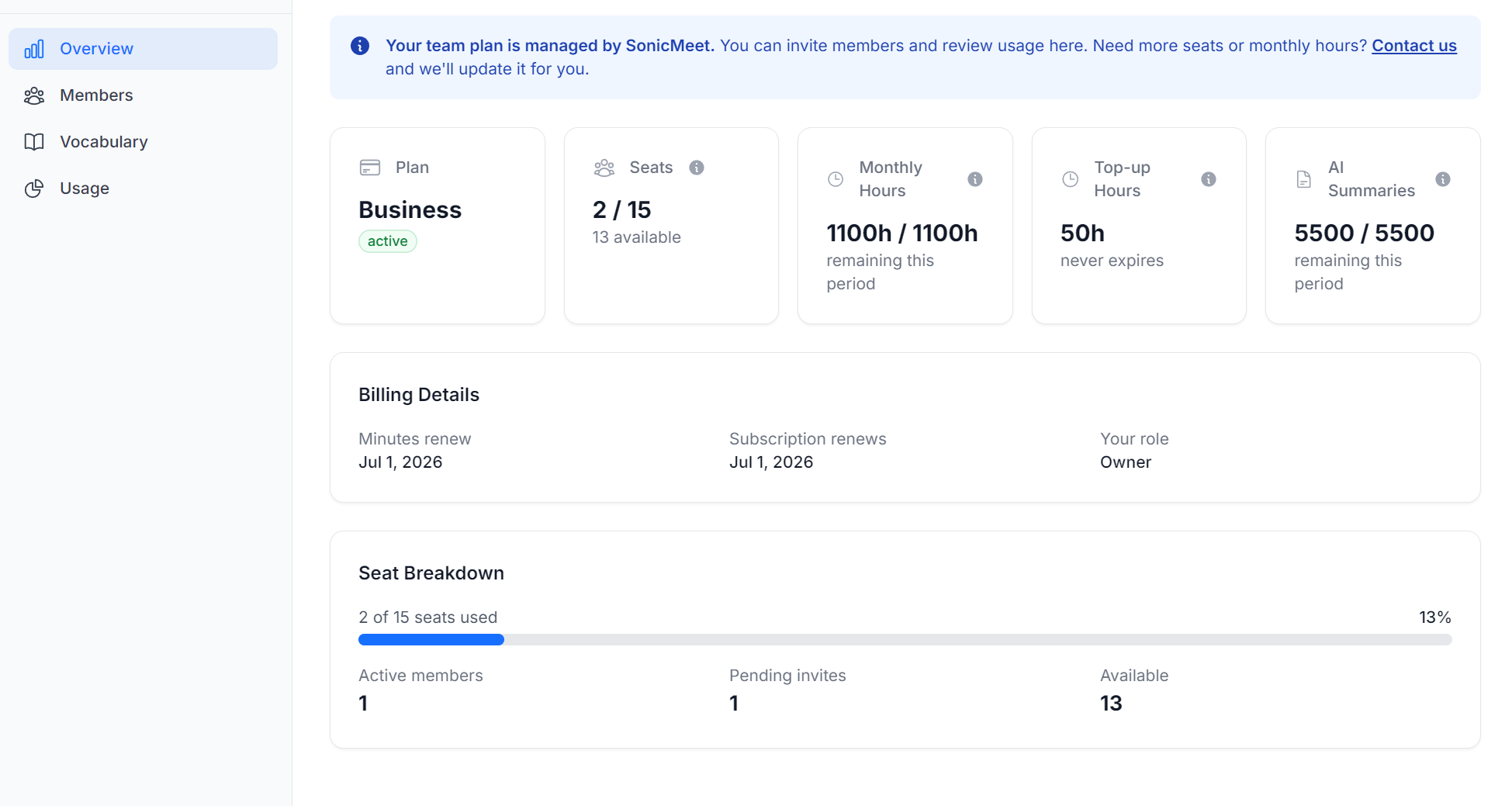
The Overview page shows your plan at a glance: how many seats your team has, how many are in use, and your team's included transcription hours for the current billing period. Below the cards you'll find your billing details — renewal dates and your role — and a seat breakdown of active members, pending invites, and available seats.
Members
The Members page lists everyone on your team along with any pending invites.
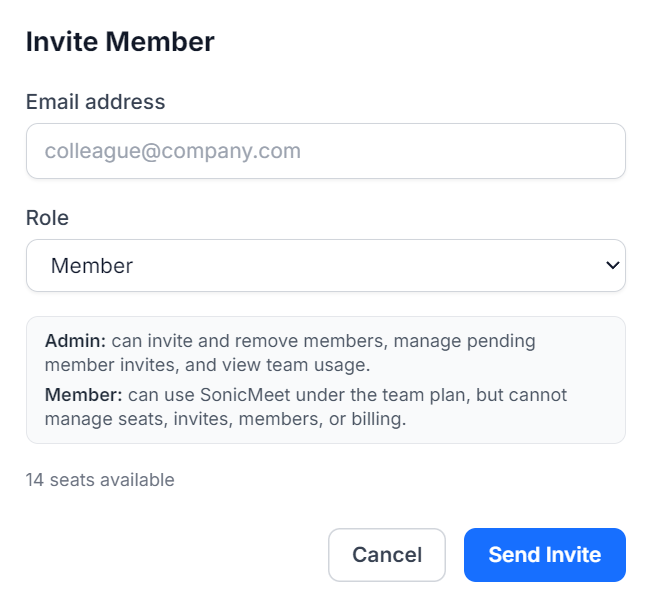
- Invite a member — click Invite, enter their email, and choose a role. If they already have a SonicMeet account they join immediately; otherwise the invite stays pending until they sign up, and a seat is reserved for them.
- Remove a member — removing someone frees up their seat right away.
- Cancel a pending invite — cancelling releases the reserved seat.
Roles
| Role | What they can do |
|---|---|
| Member | Uses SonicMeet with a team seat. Cannot open this dashboard. |
| Admin | Can open the dashboard: invite/remove members, manage pending invites, edit vocabulary, and view usage. |
| Owner | Full control, including managing admins and billing. |
Vocabulary
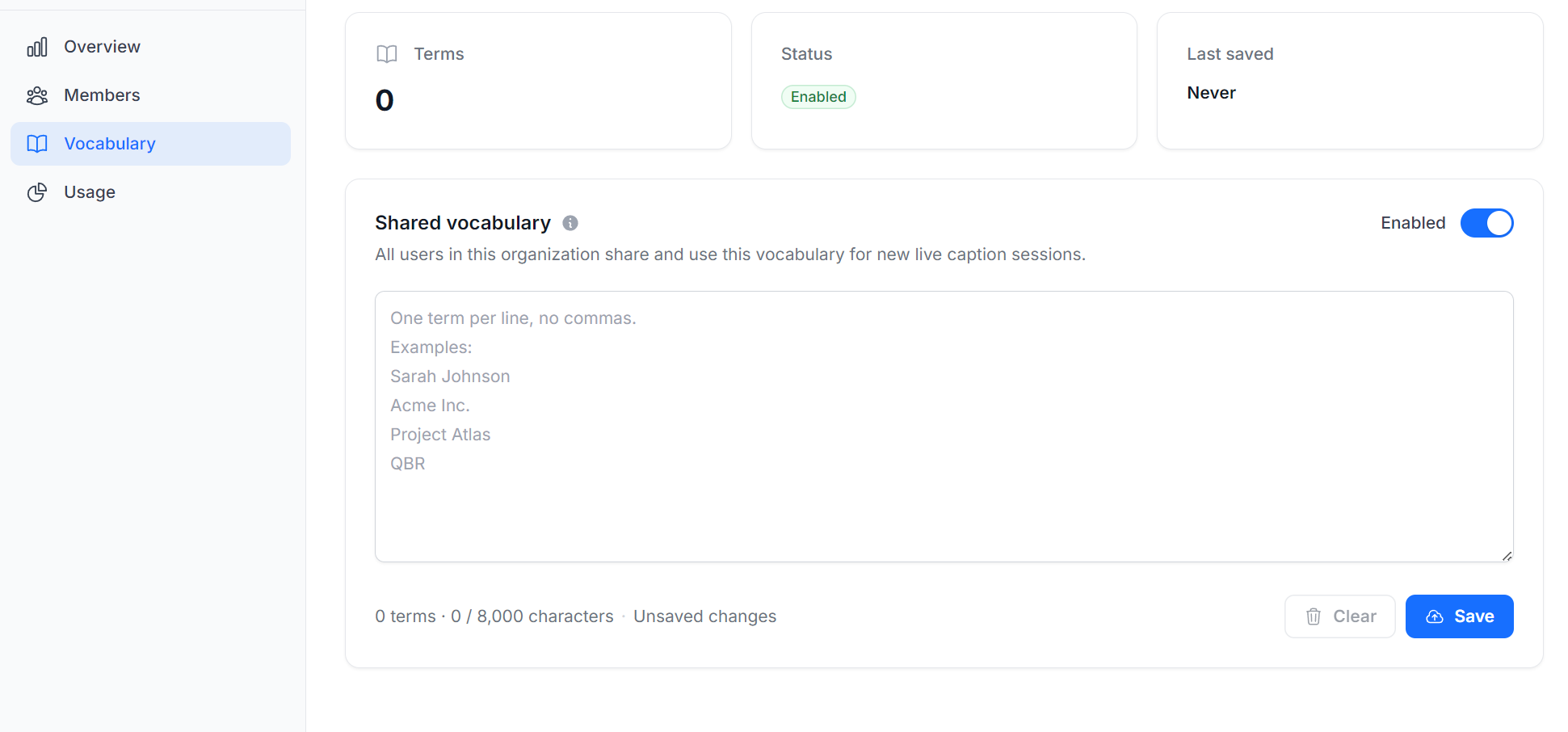
The Vocabulary page (admins and owners) lets you add custom terms — product names, acronyms, people's names — that the transcription engine should recognize. Enter one term per line and hit Save; terms apply to everyone on the team for new sessions and improve accuracy across all supported languages. You can also disable the shared vocabulary with the toggle without deleting your terms.
Usage
The Usage page (admins and owners) breaks down transcription hours by member for the current billing period, so you can see exactly where your team's hours are going.
Billing
Teams that subscribed through Stripe also see a Billing page where the owner can review and adjust the subscription. If your team was set up through a custom plan, billing is handled directly by our team — contact us for any changes.