What Does Bot-Free Mean? Meeting Bots vs Bot-Free Tools
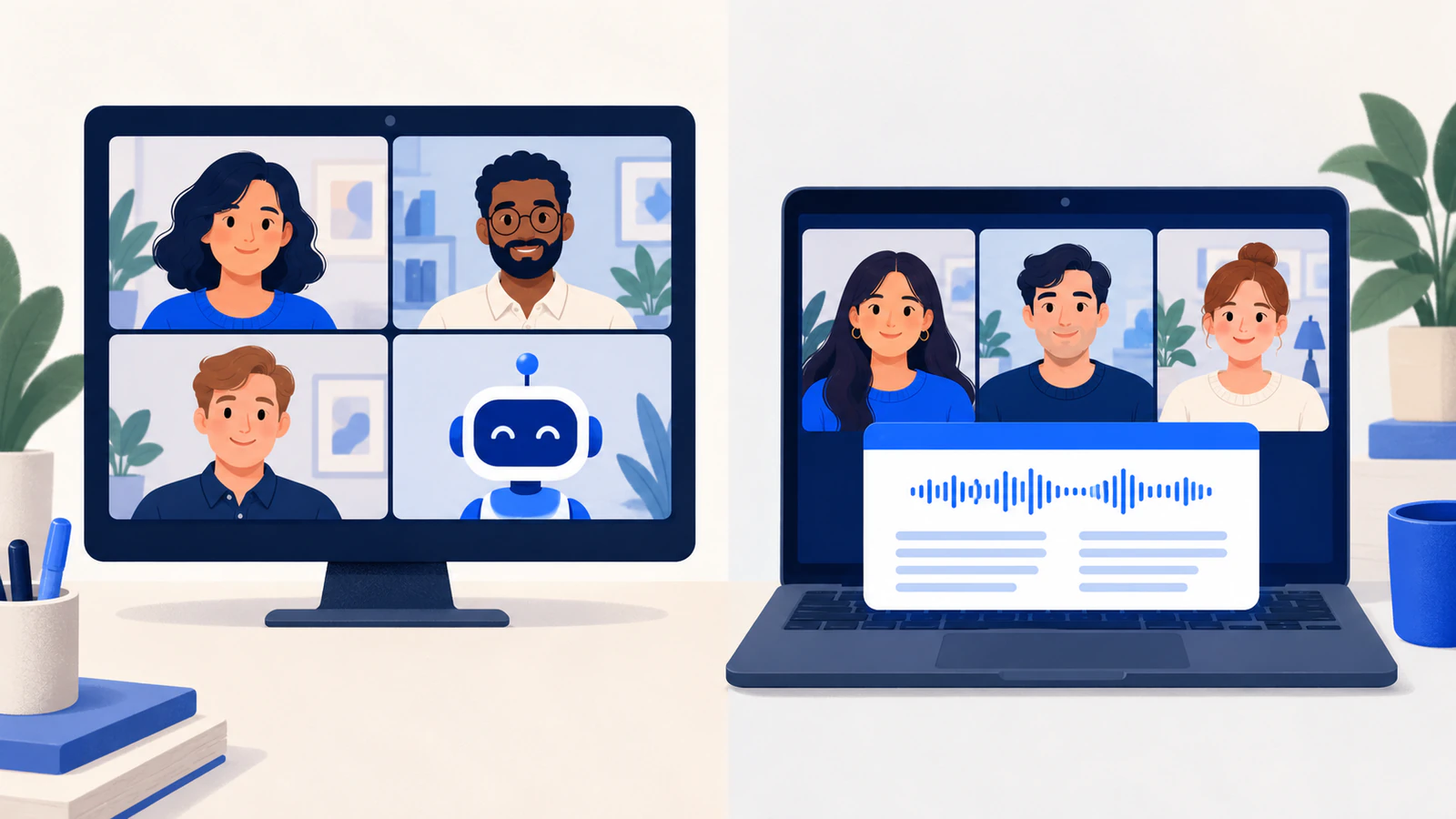
A meeting bot joins your call as a participant. A bot-free tool works from the audio on your own computer. Here's what that changes in 2026, and what it doesn't.
Short answer: "bot-free" means the tool never joins your meeting as a participant. Instead of sending a notetaker into the call, it runs on your own computer, as a desktop app or a browser extension, and works from the audio your computer plays. Nothing new shows up in the participant list.
What it doesn't mean: that your audio stays on your computer, that nobody can tell, or that you can skip telling people. Those are the parts most "bot-free" marketing leaves out, so they get their own section below.
We make SonicMeet, a bot-free tool for live translated captions, so we have a stake in this. What we say about other products comes from their own help pages, checked on October 10, 2026. These products change often.
How a meeting bot works
A meeting bot is a participant run from a vendor's servers. You connect your calendar, and when a meeting starts the bot joins under a name like "Dani's AI Notetaker". Everyone in the call can see it, and many bots also announce themselves in the chat, with a link to the live notes or a way to opt out.
Because the bot is a participant, it goes through the same doors as any guest:
- Waiting rooms and lobbies. Someone has to let it in. Bots typically wait 10 to 15 minutes and give up if nobody admits them.
- Recording permission. On Zoom, the bot asks the host for permission to record, and some bots are removed if the host says no.
- What it captures is whatever the platform sends participants. Depending on the vendor that's audio only, or audio plus video.
The classic selling point was that a bot can go to meetings you can't. Some vendors still offer it. But on Zoom it has mostly gone away. Since March 2, 2026, apps built on Zoom's Meeting SDK that join meetings hosted by other accounts "cannot join the meeting or webinar until that authorized user joins", and the session ends when that person leaves. Notetaker vendors' own help pages now say the same: their bots can't join your Zoom meetings unless you're there.
Meeting platforms are pushing back on bots
Since mid-2025, all three big platforms have given hosts and IT more ways to keep bots out:
- Google Meet. When a host turns off "ask to join", "anonymous users or third-party bots, like note takers, that attempt to use 'Ask to join' are automatically denied access" (Google). Since spring 2026, Meet also sends some join requests to a separate queue where the default action is to deny entry. Google doesn't say that queue targets bots, but notetaker vendors report their bots landing there, marked as a potential risk.
- Microsoft Teams. Teams now identifies bots and holds them in the lobby, even in meetings where everyone else skips it. Since September 2026, admins can also block detected bots automatically.
- Zoom. Besides the SDK change above, Zoom's web app has bot protection turned on for every account, and admins can add block lists, sign-in requirements and waiting rooms.
This is the practical reason many people look for bot-free tools. If other companies host most of your meetings, you don't control whether their host, or their IT department, lets your bot in.
How bot-free tools work
A bot-free tool runs on the computer you're already using for the meeting. There are three common designs:
- A desktop app that captures system audio, usually plus your microphone. Because it hears the whole computer, it works with any meeting app. SonicMeet's Windows and Mac app works this way.
- A browser extension that captures the meeting tab's audio. Nothing to download, but it only covers meetings you join in the browser, not the Zoom or Teams desktop apps. SonicMeet's Chrome and Edge extension works this way.
- An extension that leans on the platform's own captions. Some only work after you turn on the platform's captions, Zoom's automated captions on the web for example. SonicMeet doesn't need them: it makes its own captions from the audio.
The line between "bot companies" and "bot-free companies" has mostly disappeared: several of the best-known notetakers now offer a bot-free desktop mode next to their bot. So the useful question is less "which vendor" than "which mode, for which meeting".
Meeting bot vs bot-free, side by side
| Meeting bot | Bot-free app or extension | |
|---|---|---|
| Where it runs | On the vendor's servers, joining as a participant | On your computer |
| In the participant list | Yes, under its own name | No |
| Has to be let in | Often: waiting rooms, lobbies, "ask to join" | No. It's in when you're in |
| Works when you're not there | With some vendors on some platforms. On Zoom, mostly not since March 2026 | No. Your computer has to be in the call |
| What it hears | The meeting audio the platform sends; some also take video and screen shares | What your computer plays, plus your microphone if you turn it on |
| What you install | Nothing. You connect a calendar | A desktop app or browser extension, plus audio permissions |
| How the room finds out | Its name in the list, often a chat message | Nothing announces it. Telling people is up to you |
| Where the audio goes | The vendor's cloud | Usually the vendor's cloud too |
What bot-free doesn't change
Your audio usually still leaves your computer
Bot-free answers who can see the tool in the meeting. It doesn't answer where your words go. Most bot-free tools still send audio to their own servers or a speech provider to turn it into text. Some say they don't keep the audio afterwards, but that's a separate question from where your transcripts are stored and who can use them. Read the data section of the privacy policy, not the "no bot" badge.
SonicMeet is in the same group. Meeting audio streams to our servers and our speech providers in real time so we can caption it. We don't keep an audio recording. We do save transcripts, translations, notes and summaries to your account so you can look back at them. The details are on our security page.
You still need to tell people
A bot introduces itself. A bot-free tool doesn't, so the job of telling everyone falls on you.
It's also worth knowing what the best-known lawsuit in this area turned on. In In re Otter.AI Privacy Litigation (N.D. Cal.), plaintiffs allege that Otter's notetaker recorded people who hadn't agreed to it. In August 2026 the court let the core wiretap claims go forward, and its reasoning turned on what Otter allegedly did with the conversations afterwards: keeping and using them for its own purposes. That's a question every vendor has to answer, bot or no bot. The case is still going. We're not lawyers and this isn't legal advice, but the habit is the same either way: when something is transcribing a call, say so.
It isn't invisible
- Teams can detect it. Teams has an admin setting that detects "third-party applications, such as screen recorders, audio recorders, and AI note-takers, capturing audio on the user's device during a meeting", and notifies participants when it finds one. It's off by default, but an organization can turn it on.
- Your screen shows it. A caption overlay or notes window on your screen appears in anything you share or record. Share a single window or tab rather than your whole screen.
When a bot is the better choice
- You can't attend and still want the meeting captured, on a platform and vendor that still allow it.
- You want the full recording: video, screen shares and slides, not just audio.
- The whole team should get the same notes without every person installing something.
- You can't install anything on the computer you meet from, or you mostly join from your phone.
When bot-free is the better choice
- Other companies host most of your meetings, and their waiting rooms, lobbies or IT keep turning your bot away.
- Your own organization blocks bots (Teams can now do this automatically).
- You'd rather not have a vendor's name in the participant list on client or sales calls. Tell people anyway.
- You need something during the call, on your screen: live captions or live translation, not a recap that arrives afterwards.
Bot-free live translation with SonicMeet
The last point is where the two designs differ most. A bot-free tool shows its output on one screen: yours. For notes that barely matters. For live translation it's the whole idea: you read the meeting in your language, and nothing about the meeting changes for anyone else.
That's how SonicMeet works. It puts real-time translated captions over the call, in 60+ languages, with the original under each line:
- In the browser: the Chrome and Edge extension captions the meeting tab, so it covers Google Meet and Zoom or Teams on the web.
- In the desktop apps: the Windows and Mac app captures system audio, so it works with the Zoom and Teams desktop apps and anything else that plays sound.
- Your own voice is off by default. SonicMeet captions what the meeting plays, which doesn't include your microphone. Turn the microphone on if you want your own words in the captions and the transcript.
- Only you see the captions. If others in the call need translation, each of them runs it on their own computer. If you need one translation for everyone, the platforms' own translated captions are built for that, usually on paid plans. We compare them for Zoom, Microsoft Teams and Google Meet.
- Afterwards, the transcript is in your account, where you can export it or turn it into a summary.
FAQ
What does bot-free mean?
It means the tool doesn't join your meeting as a participant. It runs on your computer, as a desktop app or browser extension, and works from the audio your computer plays and, if you allow it, your microphone. Nothing new appears in the participant list.
Is a bot-free note taker more private?
Not automatically. Bot-free changes who can see the tool in the meeting, not where your audio and transcripts go. Most bot-free tools still send audio to their servers to transcribe it. Check whether the vendor keeps audio, where transcripts are stored and whether your meetings are used to train its models.
Can other people tell I'm using a bot-free tool?
There's no bot in the participant list, but don't count on nobody knowing. Teams admins can turn on detection for apps capturing audio on a participant's computer, which notifies everyone in the meeting, and anything on your screen shows up when you share it. Either way, tell people when something is transcribing the call.
Can a bot-free tool take notes if I'm not in the meeting?
No. It runs on your computer, so your computer has to be in the call. If you need meetings captured while you're away, that's what bots are for, although on Zoom most of them now need you there too.
Is there a bot-free tool for live translation?
Yes. SonicMeet shows real-time translated captions in 60+ languages over Zoom, Google Meet, Teams and other meeting apps, without joining the call. It runs as a Chrome and Edge extension or as a Windows and Mac app, and only you see the captions.
Enjoyed this article? Share it with others!