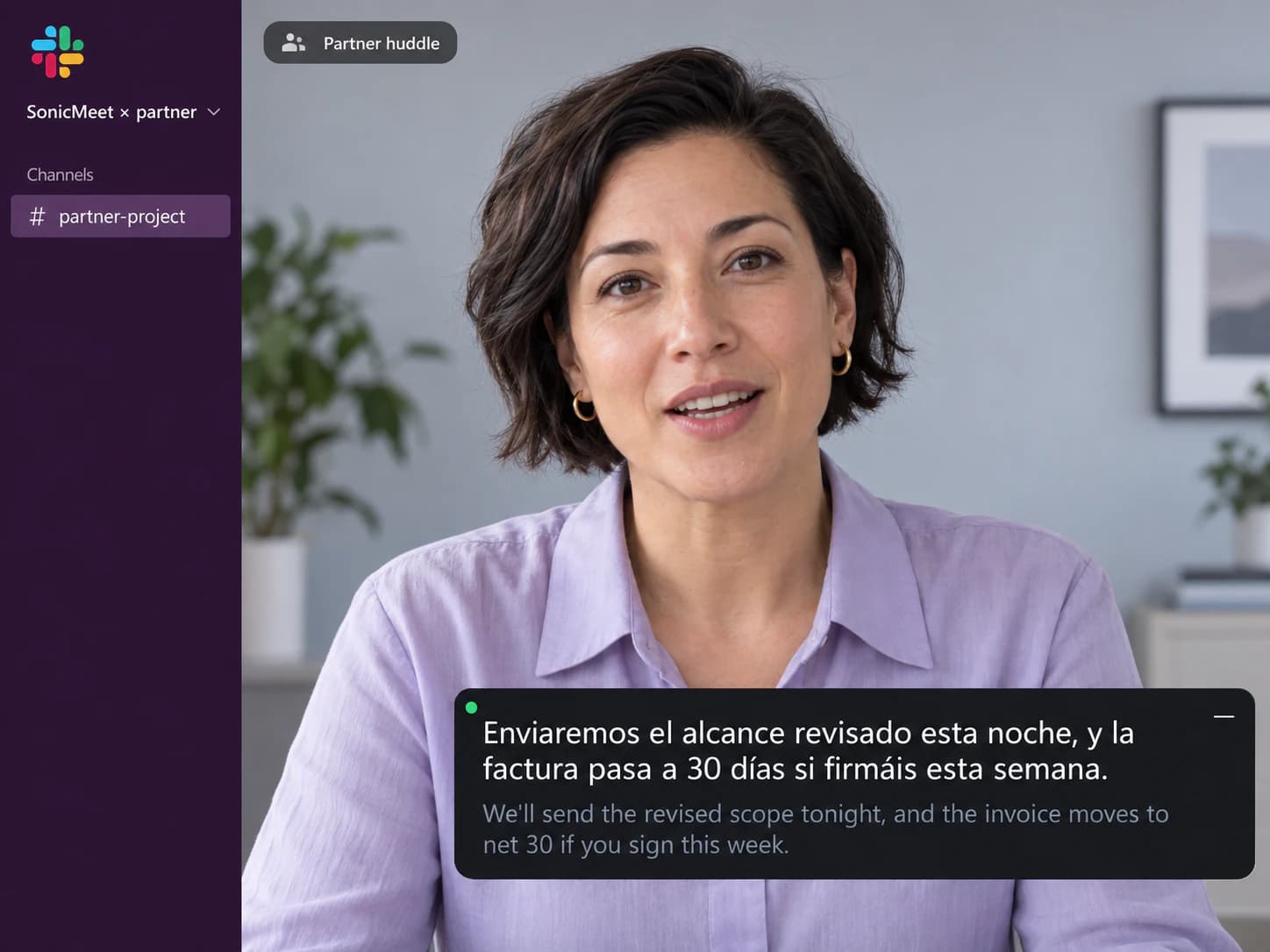
Slack Connect huddle with a partner
Their workspace, your language. Slack's AI notes are off for outside people; SonicMeet does not care whose channel it is.
Slack's captions are English only and disappear when the huddle ends. SonicMeet shows bilingual, real-time captions on your side of any huddle, in the Slack app or in Chrome, and keeps the transcript.
Free · Windows 10/11 · Works with the Zoom & Teams desktop apps
Free · macOS 14.2 or later · Apple Silicon & Intel
Free · Chrome & Edge · No download, no bot in your meeting
SonicMeet runs on desktop — open this page on your computer to install.
Joining from a browser instead? Get the extension →Joining from a browser instead? Get the extension →Also available as a Windows desktop app →Una rápida antes del standup: ¿lanzamos la corrección hoy o esperamos al proveedor?
Quick one before standup: do we ship the fix today, or wait for the vendor?
Lanzadla. Dejo las notas de la versión en el hilo.▍
Ship it. I'll drop the release notes in the thread.
Sharing my screen: this is the error customers have been seeing since yesterday.
Comparto pantalla: este es el error que ven los clientes desde ayer.
If you approve it now, we deploy this afternoon.▍
Si lo aprobáis ahora, lo desplegamos esta tarde.
Spanish, Japanese, Chinese, Portuguese, German, French and 50+ other languages, either direction, live.
Four everyday situations, each with the language pair it usually needs.
Their workspace, your language. Slack's AI notes are off for outside people; SonicMeet does not care whose channel it is.
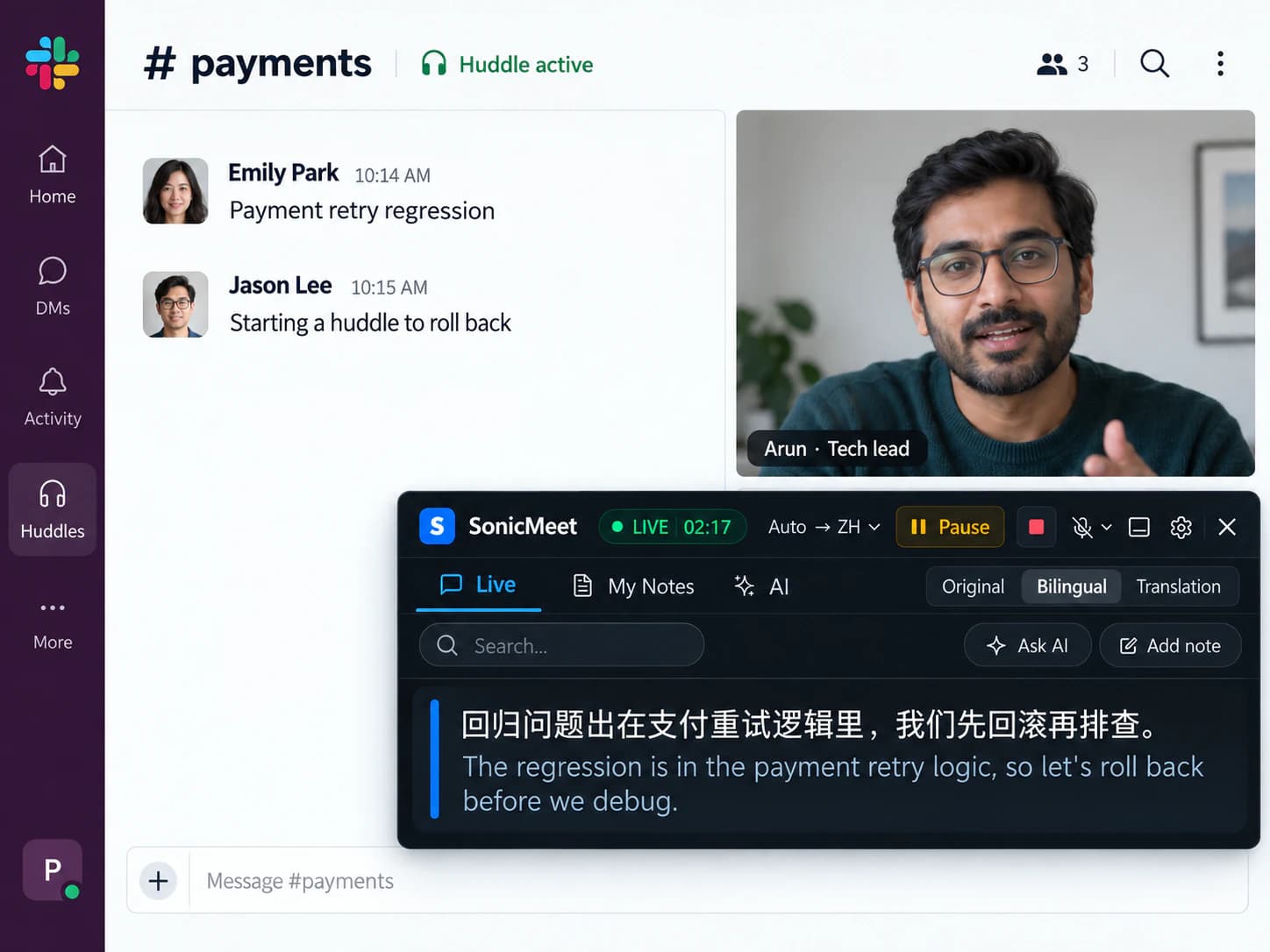
No invite, no time to set anything up. Open SonicMeet, pick your language, follow along.
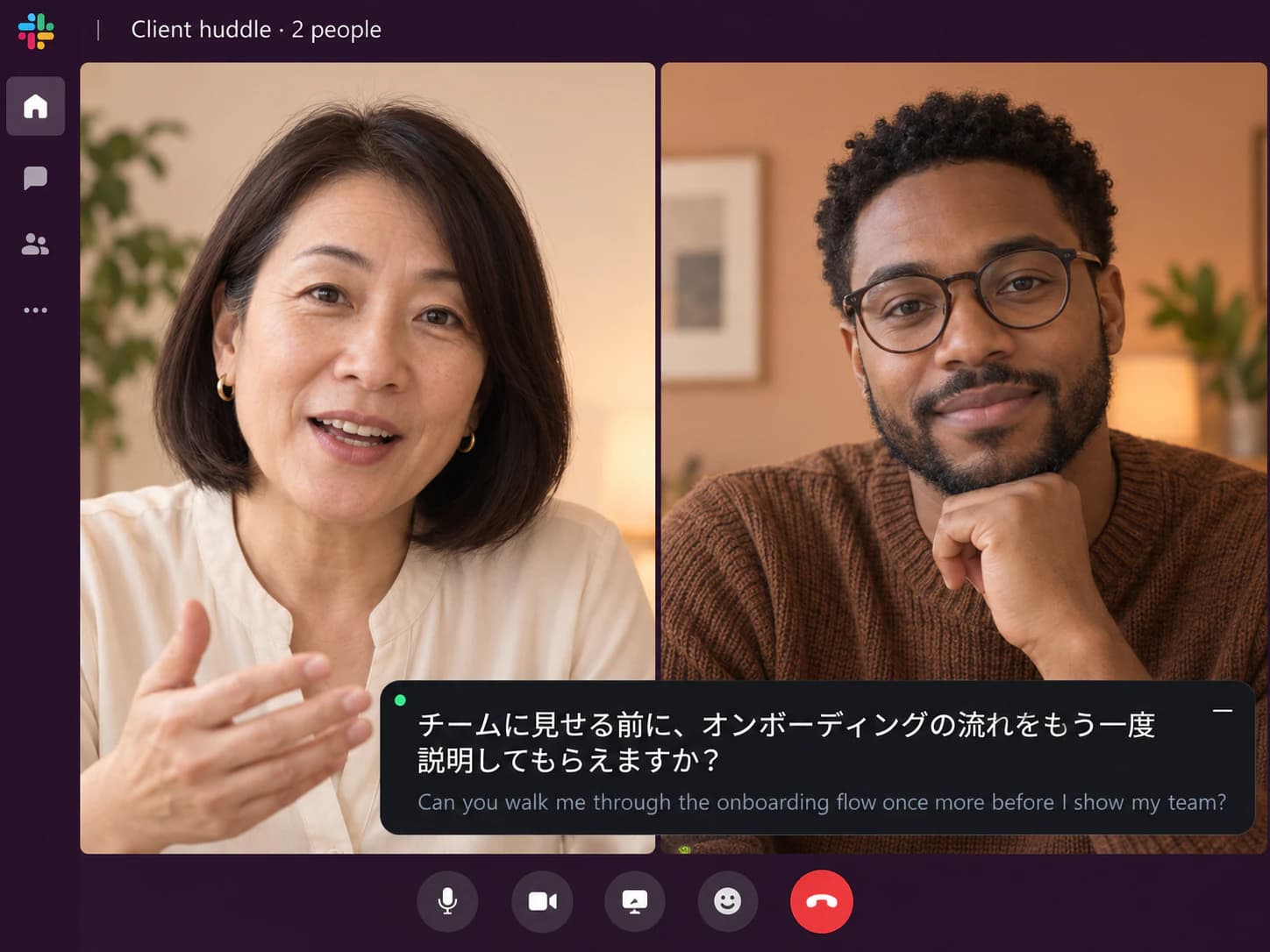
Free Slack keeps huddles to two people and skips AI notes. Captions and a transcript still happen on your side.
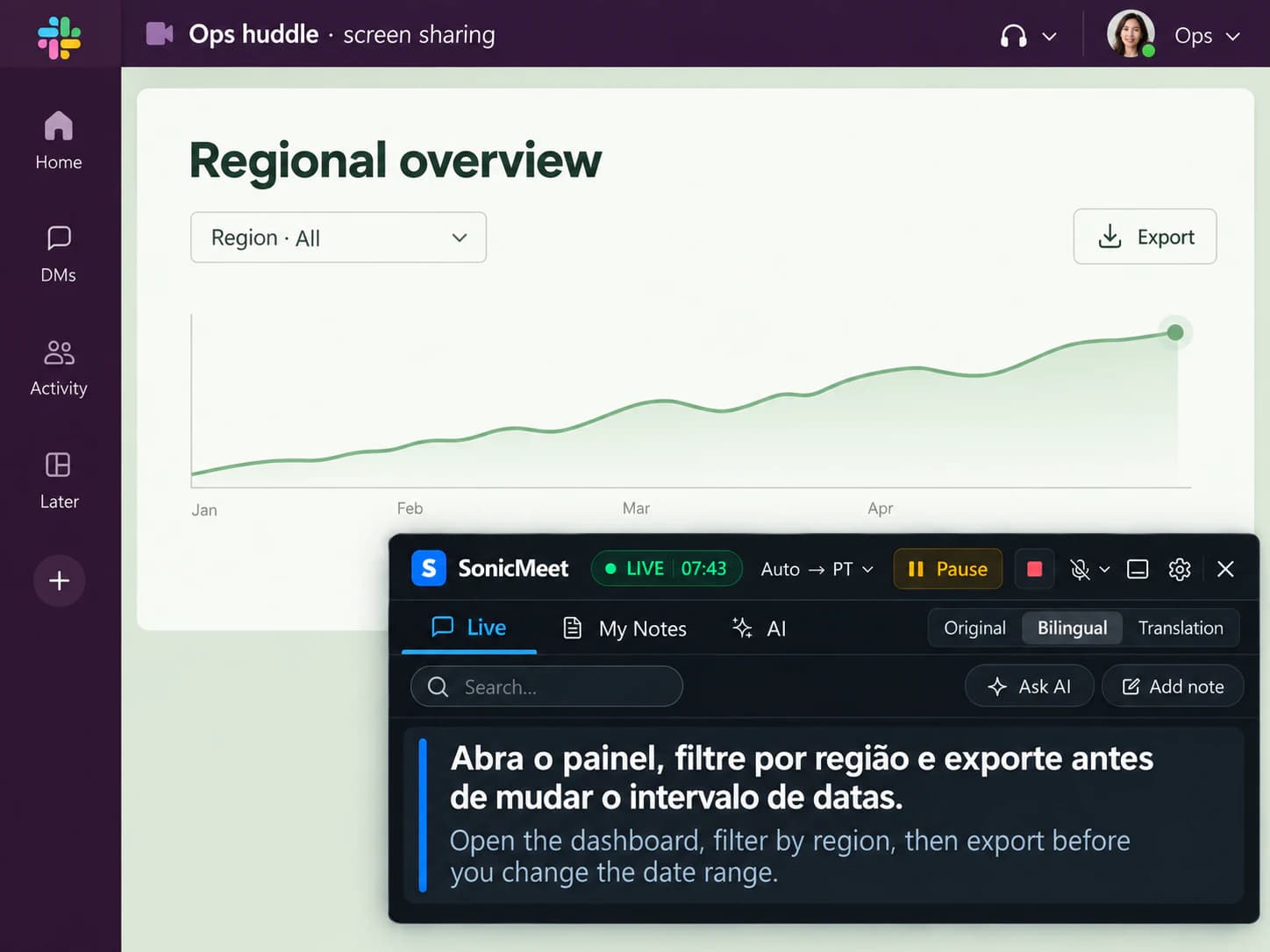
The presenter talks fast over a shared screen. Read it as it happens, tap to keep the steps.
Captions yes, in English only. Translation no. A transcript only on paid plans, and not with outside people.
| In your Slack huddle | Slack built in | SonicMeet |
|---|---|---|
| Captions in the spoken language | Yes, English only | Yes, in 60+ spoken languages |
| Translated captions | No | Included, any of 60+ languages |
| Translation and original together | No | Bilingual, original under each line |
| Captions after the huddle ends | Gone; Slack does not save captions | Kept on your side, searchable |
| Transcript and notes | AI notes on paid plans; a member starts them and everyone is told | Your own transcript on any plan, no notice to anyone |
| Notes posted to the huddle thread | Yes, an AI notes canvas with the transcript inside | No, your transcript stays with you |
| Huddle with another company or a guest | Captions yes; AI notes not available | Works the same |
| On the free plan | Two-person huddles, no AI notes | Full captions and translation |
| Speed vs. accuracy | One fixed mode | Instant or Accurate, switch mid-huddle |
Based on Slack's help center pages for huddles, live captions and AI huddle notes. · Last checked September 22, 2026
Captions in the spoken language
Translated captions
Translation and original together
Captions after the huddle ends
Transcript and notes
Notes posted to the huddle thread
Huddle with another company or a guest
On the free plan
Speed vs. accuracy
Based on Slack's help center pages for huddles, live captions and AI huddle notes. · Last checked September 22, 2026
Anyone can turn them on from the expanded huddle window, but there is no language to pick and nothing is saved. To keep any of it you need AI notes, a separate feature with its own rules.
Paid plans only. A member, not a guest, starts them; everyone in the huddle is told; the notes and transcript land in a canvas in the huddle thread. Not available in huddles with people from other companies or guests. Slack lists eight tested languages: English, Spanish, Portuguese, French, German, Japanese, Korean and Chinese.
It depends on where you huddle, not on your Slack plan.
Captions the audio of the Slack window. Nothing changes inside Slack, and nothing is installed in your workspace.
Captions overlay the Slack tab, nothing to download. Slack runs huddles in Chrome and Firefox; the extension runs in Chrome and Edge, so Chrome is the sure overlap.
If Slack opens in its own window, it is the desktop app.
About a minute, once.
Desktop app for the Slack client, extension for Chrome. Sign in with Google; free to start.
Pick the language you read. Nothing to turn on in Slack, nothing to ask your admin for.
Translation above, original below. Tap any line to save it as a note; the transcript stays after the huddle ends.
Una rápida antes del standup: ¿lanzamos la corrección hoy o esperamos al proveedor?
Quick one before standup: do we ship the fix today, or wait for the vendor?
Lanzadla. Dejo las notas de la versión en el hilo.▍
Ship it. I'll drop the release notes in the thread.
Both on every plan, switchable mid-huddle from Settings in the caption area.
Translates as the words arrive, with sub-second delay, so you can answer in the flow of the conversation.
Best for: quick huddles, standups, pairing on a bug.
Waits for the full sentence and uses a stronger model with far more context, so technical terms and names land right. Runs roughly 1 to 5 seconds behind Instant.
Best for: client huddles, design reviews, anything with numbers, names or terms you will act on.
Per-language guides: what works as the spoken language, and as the translation.
Yes, in English only. Turn them on from the cog icon in the expanded huddle window, or the three dots on mobile. There is no other language, and Slack does not save the captions when the huddle ends. SonicMeet captions the huddle audio itself in 60+ spoken languages, translates it live, shows both lines, and keeps the transcript.
Not live. Slack AI can translate a message you click on, on Business+ and Enterprise+, and only you see the result; it does nothing for speech in a huddle. SonicMeet translates what people say as they say it, on your side, into any of 60+ languages.
With Slack: turn on AI notes. That needs a paid plan and a member, not a guest, to start it; everyone in the huddle is notified; the notes land in a canvas in the huddle thread with the transcript inside, and that transcript does not show up in search. With SonicMeet: the transcript builds on your side in every huddle, on any plan, and you can tap a caption line during the huddle to save it as a note.
Yes. Slack's AI notes are not available in huddles with external people or guests, which is exactly where you most need a record you can read. SonicMeet only uses what you hear, so it works the same in a partner's channel, a shared DM or a huddle with a guest, and nobody has to be on any particular plan.
Yes. Free Slack limits huddles to two people and leaves out AI notes; it says nothing about what runs on your computer. SonicMeet gives you the same captions, translation and transcript as on any paid plan.
No. Slack tells everyone when AI notes start; SonicMeet is not a Slack app and not a bot, so nothing is announced in the huddle, nothing appears in the thread, and nothing is installed in your workspace. Captions render on your screen only. Audio is processed by SonicMeet and its speech provider in real time, and we don't keep an audio recording.
Both. SonicMeet for Windows and Mac captions the audio of the Slack window. If you use Slack in a browser, Slack runs huddles in Chrome and Firefox and the SonicMeet extension runs in Chrome and Edge, so use Chrome. Mobile is the one place it does not run: SonicMeet is desktop software.
No. SonicMeet is not a Slack Marketplace app, does not connect to your workspace and needs no app approval. It is software on your own computer, so on a company-managed device follow your company's rules for installing programs or browser extensions.
No. SonicMeet transcribes the huddle audio itself, so Slack's captions can stay off, or on if you like reading both.
Two modes, chosen per huddle. Instant translates as the words arrive with sub-second delay. Accurate waits for the complete sentence and translates it with a stronger model and far more surrounding context, which makes a visible difference on technical terms, product names and natural phrasing, roughly 1 to 5 seconds behind Instant. Switch from Settings in the caption area at any time.
Yes. SonicMeet uses the huddle's audio, so it does not matter whether someone is sharing a screen, drawing on it or has video on. Anything you can hear in the huddle gets captioned.
Yes to start. Install SonicMeet, sign in with Google, and the Free plan gives you 20 minutes a month of captions with both translation modes. Paid plans add hours. There is nothing to buy from Slack, for you or for anyone else in the huddle.
Same captions, same notes, on the other apps your team lives in.
Free to install, about a minute to set up, and nobody else in the huddle has to do anything.
