History, AI summaries, Ask AI and share links
Every session is saved to your account. Afterwards you can search it, export it, summarize it, ask about it, or send a recap to someone who missed the meeting.
Find a past session
- 1Open History
In the popup, click View transcripts history. Search the list, open a session, or delete one. Merge combines several sessions into one, for example when a call was split in two.
- 1Open Sessions
Click Sessions in the sidebar. You can search, rename and delete sessions there. Right after you stop, View session takes you straight to the one you just finished.
Sessions are saved to your SonicMeet account rather than to the computer, so you'll find them wherever you sign in. We don't keep audio recordings, only the transcript, your notes and summaries.
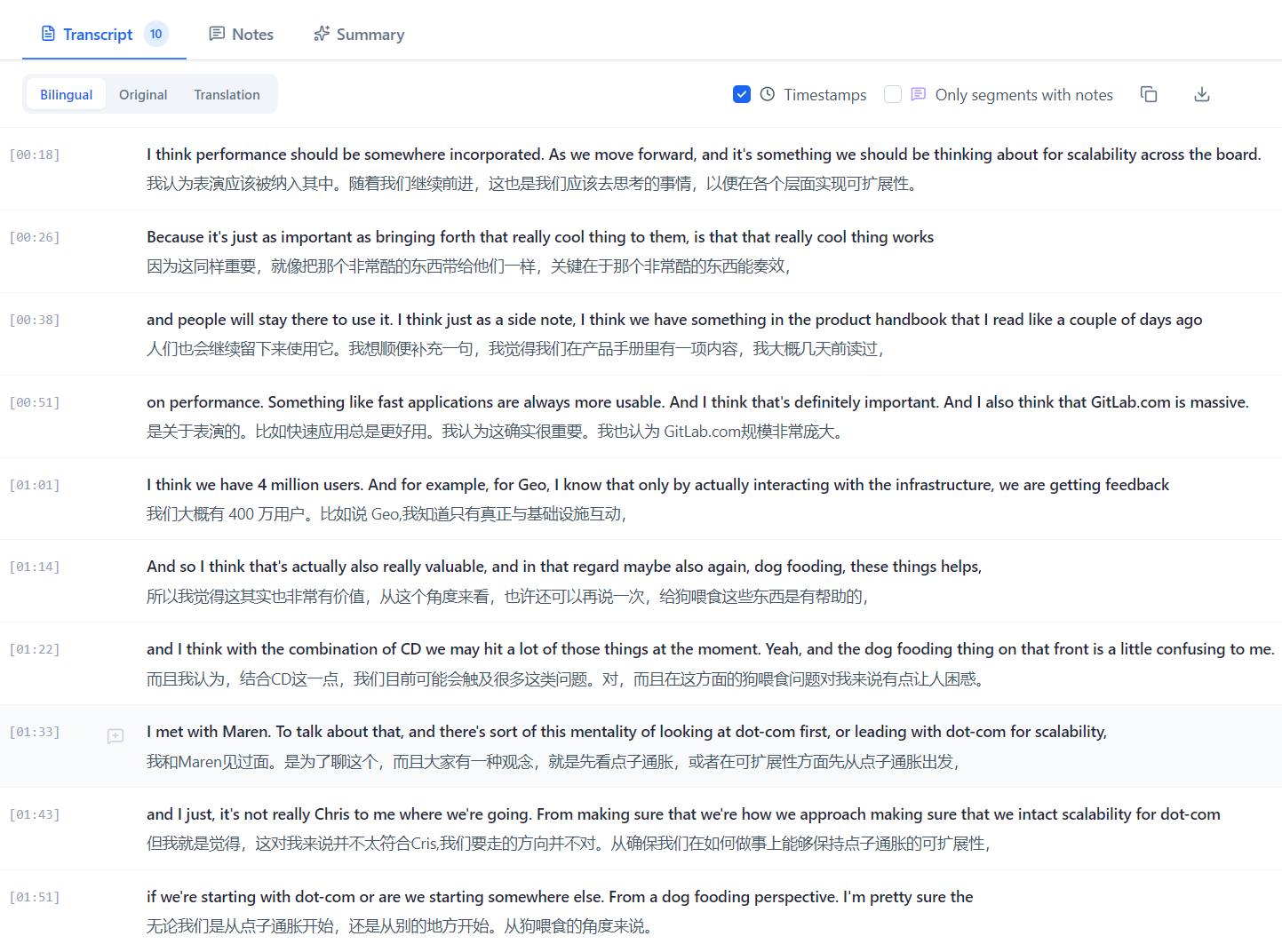
Export a transcript
Export downloads a session as Markdown or TXT. You choose what goes in: the transcript (both languages, original only, or translation only), timestamps, your notes, and the AI summary.
AI summaries
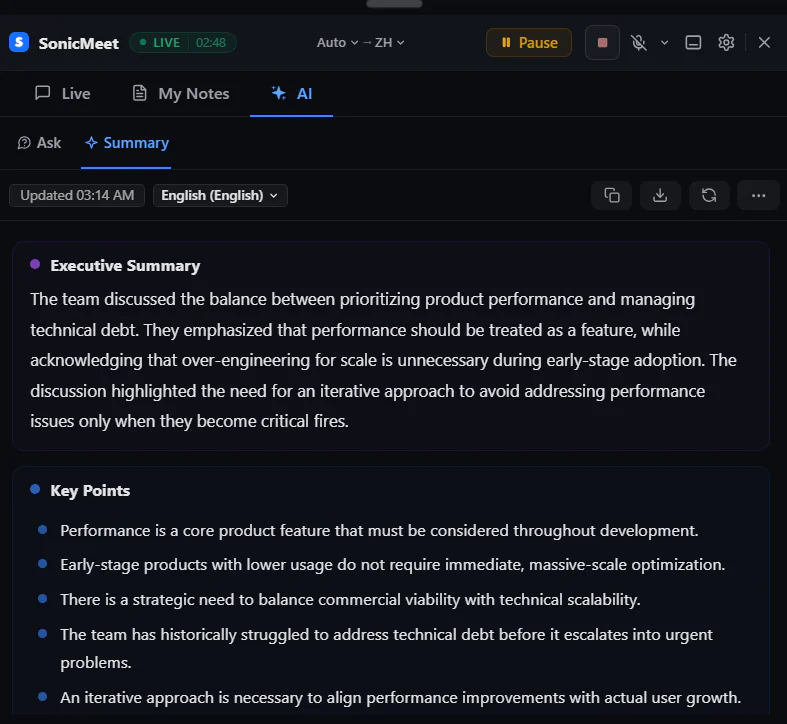
- Generate a summary during the meeting (AI tab → Summary in the extension) or afterwards from your history. It pulls out the key points, action items and decisions.
- Each new summary uses 1 AI credit. Opening a summary you already have is free; Regenerate replaces it and uses another credit.
- In the extension, Summary language in Settings sets the language summaries are written in.
- A session needs enough speech to summarize; very short ones show a message instead. If a summary fails, the credit is refunded automatically.
Ask AI about a meeting
Ask questions in plain language, during the call or afterwards, such as “What decisions were made?” Answers are based on the transcript so far; during a live meeting, the very latest captions may not be included yet.
- Each answer uses 1 AI credit. If no answer comes back, the credit is returned.
- In the extension it's under AI → Ask during a meeting, and Ask AI in your history. In the desktop app, Ask AI is in the session view.
Share a recap
- 1Open the session and click Share
From your history in the extension, or from Sessions in the desktop app.
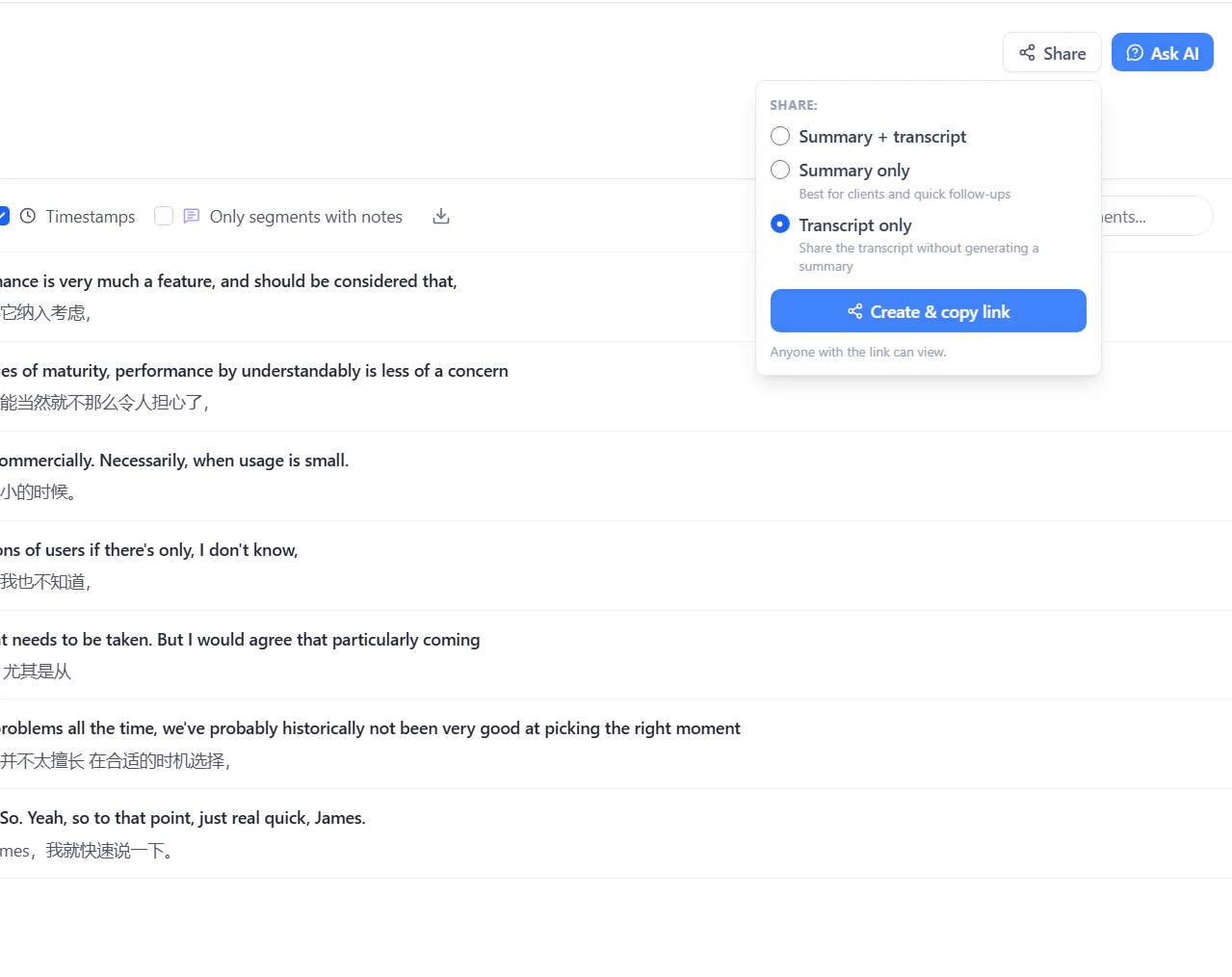
- 2Choose what to share
Summary + transcript, Summary only or Transcript only. Sharing the transcript only is free. The summary options need a summary: the extension creates one for you (1 AI credit), and the desktop app asks you to generate it first.
- 3Send the link
Anyone with the link can view the recap; they don't need a SonicMeet account.
Stop sharing turns a link off immediately; you can share again later with a new link. In the extension, Shared links lists everything you've shared and how often each link was opened.
Common questions
Where are my transcripts stored?
In your SonicMeet account, so they're available wherever you sign in. SonicMeet doesn't keep audio recordings. Transcripts, notes and summaries stay until you delete them or delete your account.
Does opening a summary again use an AI credit?
No. Only generating a new summary or regenerating one uses a credit. Opening a summary you already have is free.
Can people open a shared recap without signing in?
Yes. Anyone with the link can view it. Stop sharing turns the link off immediately, and you can create a new link later.