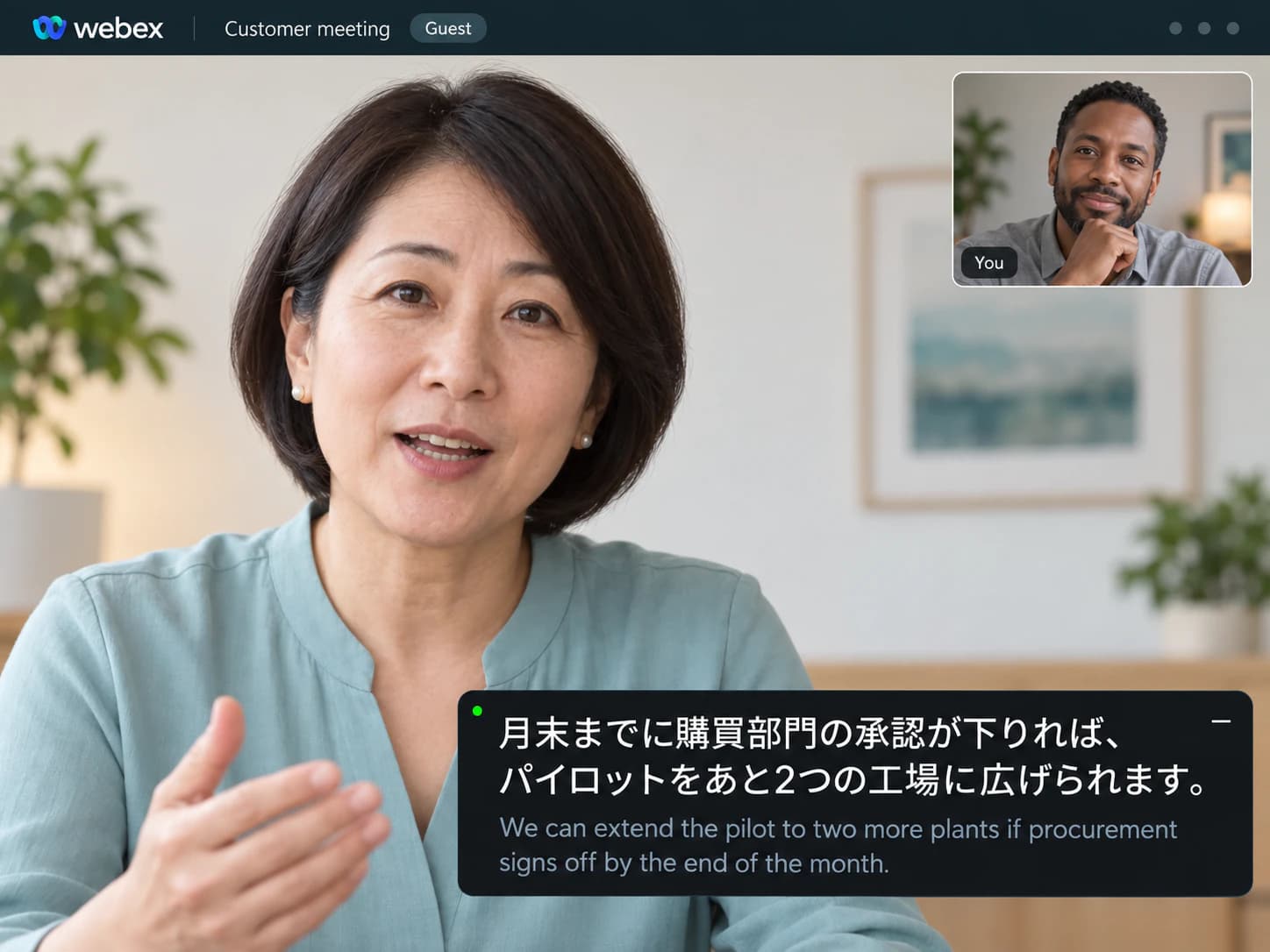
Customer's Webex site, you are the guest
Their plan, their add-on, their admin. SonicMeet does not ask any of them.
Webex translates captions only when the host holds the real-time translation license and their admin switched it on, and never in the web app. SonicMeet shows bilingual, real-time captions on your side of any Webex meeting, desktop or browser.
Free · Windows 10/11 · Works with the Zoom & Teams desktop apps
Free · macOS 14.2 or later · Apple Silicon & Intel
Free · Chrome & Edge · No download, no bot in your meeting
SonicMeet runs on desktop — open this page on your computer to install.
Joining from a browser instead? Get the extension →Joining from a browser instead? Get the extension →Also available as a Windows desktop app →ロードマップを見る前に、パイロットが10月のままで問題ないか、皆さん確認してもらえますか?
Before we look at the roadmap, can everyone confirm the pilot is still on for October?
はい。ただ、お客様からはまだ署名済みのセキュリティ質問票をいただいていません。▍
Yes, but the customer still owes us the signed security questionnaire.
I'm sharing my screen. This is the revised budget for Q2.
画面を共有します。こちらが第2四半期の修正予算です。
If you approve today, we can start the integration next week.▍
今日承認いただければ、来週から統合作業を始められます。
Japanese, German, French, Chinese, Spanish, Portuguese and 50+ other languages, either direction, live.
Four everyday situations, each with the language pair it usually needs.
Their plan, their add-on, their admin. SonicMeet does not ask any of them.
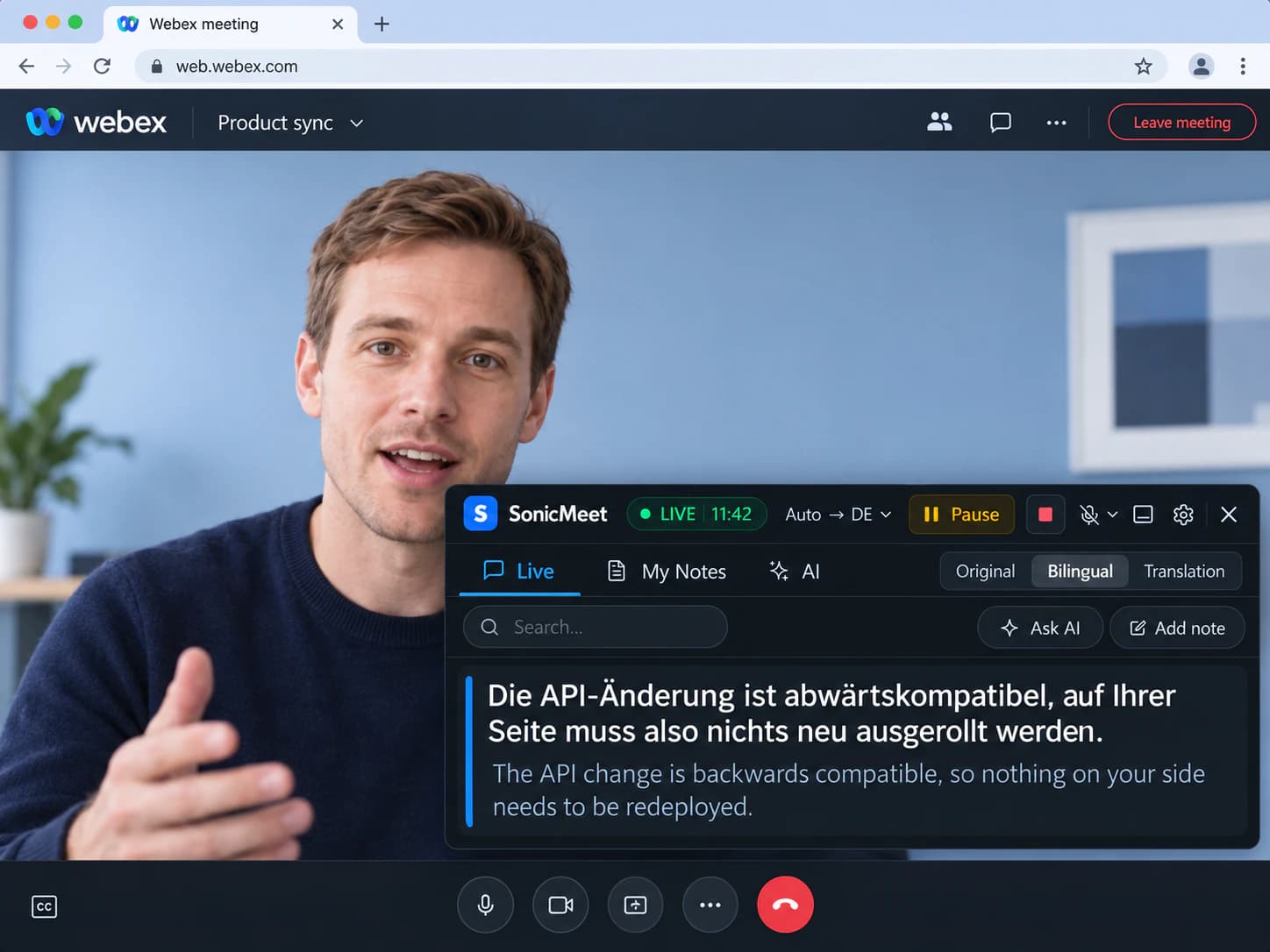
Webex's translation does not run in the web app on the Suite platform. The extension does, in Chrome or Edge.
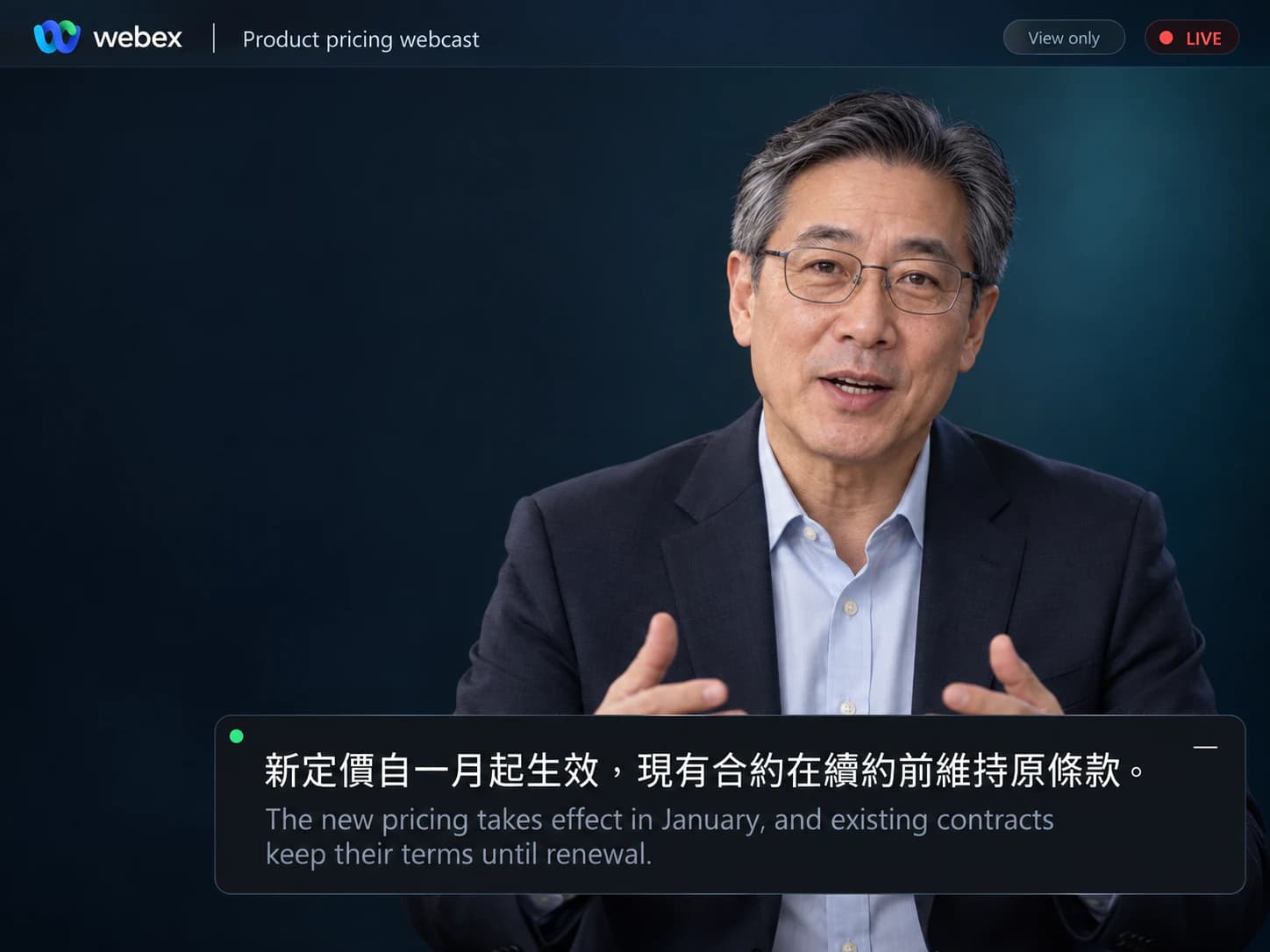
View-only, and real-time translation is off in webcast view. Captions are not.
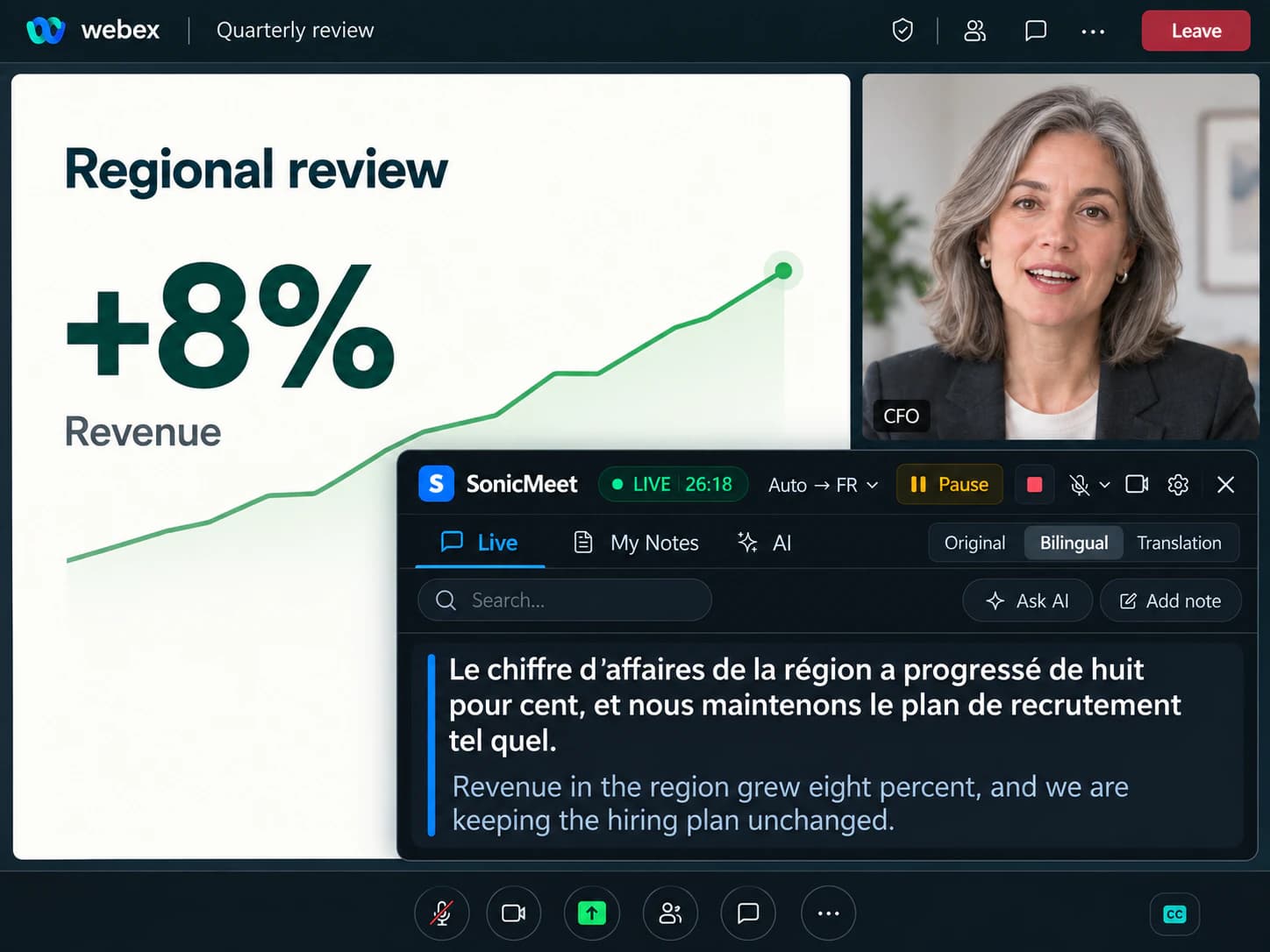
An hour of numbers and names. Accurate mode, tap to save the decisions.
Yes, as a per-host add-on: only when the host bought it and their admin turned it on, and never in the web app.
| In your Webex meeting | Webex built in | SonicMeet |
|---|---|---|
| Captions in the spoken language | Yes, when the host has a paid plan; 16 spoken languages, 5 on free accounts | Yes, on your side, 60+ spoken languages |
| Translated captions | Only with the host's real-time translation add-on, enabled by their admin; 120+ languages | Included, any of 60+ languages |
| Translation and original together | Translation only | Bilingual, original under each line |
| Joining from the browser | Real-time translation not supported in the web app on the Webex Suite platform | Extension in Chrome or Edge, same captions |
| In a meeting another company hosts | Their plan and their add-on decide | Works the same |
| Captions after the meeting | Only if the host recorded it | Kept on your side, searchable |
| AI summary shared with the whole meeting | Yes, AI Assistant on plans that include it; the host decides who can start it | No, your transcript stays with you |
| On a free Webex account | Captions in 5 languages, 40-minute meetings, no translation | Full translation |
| Webex Calling phone calls | Captions and transcription need a Calling Professional license; translated captions only on Cisco desk phones, 6 languages | Desktop app captions the call in the Webex App, same translation |
| Speed vs. accuracy | One fixed mode | Instant or Accurate, switch mid-call |
Based on Cisco's published requirements for closed captions, real-time translation and Webex Assistant. · Last checked September 22, 2026
Captions in the spoken language
Translated captions
Translation and original together
Joining from the browser
In a meeting another company hosts
Captions after the meeting
AI summary shared with the whole meeting
On a free Webex account
Webex Calling phone calls
Speed vs. accuracy
Based on Cisco's published requirements for closed captions, real-time translation and Webex Assistant. · Last checked September 22, 2026
Real-time translation is a per-host license. Their admin has to enable it, and Webex Assistant for the host; then every attendee picks a caption language from 120+, up to 15 different ones in one meeting. It does not run in webinar webcast view, or in the web app on the Webex Suite platform.
Anyone can switch captions on for themselves, in meetings a paid account hosts: 16 spoken languages, 5 on a free account. A post-meeting transcript exists only when recording was on together with captions or Webex Assistant, and recording is the host's call.
It depends on how you join, not on the host's plan.
Captions the audio of the Webex window. Works with the client your company installed, and changes nothing inside Webex.
Captions overlay the meeting tab, nothing to download. Every invite offers “Join from this browser”, and that is where Webex's own translation does not run.
If Webex opens in its own window, it is the desktop app.
About a minute, once.
Desktop app for the Webex App, extension for the browser. Sign in with Google; free to start.
Join as usual, open SonicMeet, pick the language you read. Nothing to ask the host or their admin for.
Translation above, original below. Tap any line to save it as a note; the transcript stays after the meeting.
ロードマップを見る前に、パイロットが10月のままで問題ないか、皆さん確認してもらえますか?
Before we look at the roadmap, can everyone confirm the pilot is still on for October?
はい。ただ、お客様からはまだ署名済みのセキュリティ質問票をいただいていません。▍
Yes, but the customer still owes us the signed security questionnaire.
Both on every plan, switchable mid-meeting from Settings in the caption area.
Translates as the words arrive, with sub-second delay, so you can answer in the flow of the conversation.
Best for: standups, project syncs, everyday internal meetings.
Waits for the full sentence and uses a stronger model with far more context, so technical terms and names land right. Runs roughly 1 to 5 seconds behind Instant.
Best for: customer reviews, vendor negotiations, webinars, anything full of numbers and names.
Per-language guides: what works as the spoken language, and as the translation.
Yes, as a paid add-on on the host's side. Their admin enables it and assigns the license to the host; then every attendee can pick a caption language from 120+, with up to 15 different languages in one meeting. Without that license, Webex captions, or subtitles, stay in the spoken language. It also does not run in webinar webcast view or in the web app on the Webex Suite platform. SonicMeet gives you translated captions from your own side in any Webex meeting, with none of that.
No. SonicMeet does not read Webex licenses or site settings; it captions the meeting audio on your side. Buying the add-on for yourself would only matter in meetings you host: Webex checks the host's entitlement, not the attendee's.
Yes, and that is where Webex's own translation is most often missing. As a guest on a customer's or vendor's Webex site, their plan, their add-on and their admin decide what you see. SonicMeet works the same in every meeting you can hear: turn it on yourself, read in your language, keep your own transcript.
Yes. Webex's web app runs in Chrome, Edge, Firefox and Safari; the SonicMeet extension runs in Chrome and Edge, so join from one of those and the captions overlay the meeting tab. That matters on Webex in particular: real-time translation is not supported in the web app on the Webex Suite platform, even when the host has the license.
Yes. SonicMeet for Windows and Mac captions the audio of the Webex window, so you keep the Webex App your company installed, including the version IT manages. Nothing changes inside Webex.
Yes, in the Webex App on the desktop: a call is audio in the Webex window, so SonicMeet for Windows and Mac captions and translates it exactly like a meeting. Webex Calling's own captions and call transcription need a Webex Calling Professional license and cover 15 spoken languages; translated call captions exist only on Cisco 9800-series desk phones, in six languages. Cisco has announced a speech-to-speech Translator Agent for Webex Calling for 2026, ten languages at launch, with Meetings to follow.
Webex keeps captions only when the meeting was recorded, and a post-meeting transcript needs recording on together with captions or Webex Assistant. Recording is the host's call and the file lives with the host. SonicMeet builds a transcript on your side in every meeting, and you can tap any caption line during the call to save it as a note.
No. Webex Assistant announces itself to everyone and cannot be hidden, and recording shows an indicator, because those run inside the meeting. SonicMeet is not a Webex app and not a bot: nothing is announced, nothing appears in the participant list and nothing is installed on your Webex site. Captions render on your screen only. Audio is processed by SonicMeet and its speech provider in real time, and we don't keep an audio recording.
No. SonicMeet transcribes the meeting audio itself, so Webex's captions can stay off, or on if you prefer. It does not read or depend on them, which also means it works in meetings where the host's plan gives you no captions at all.
Yes. SonicMeet captions whatever you can hear, so it works as a webinar attendee and in webcast view, where Webex's real-time translation is not available and Webex Assistant is not offered to attendees. The one case it cannot cover is dialing in by phone, because no audio reaches your computer.
Yes. A free Webex account gets 40-minute meetings with captions in five spoken languages and no translation; that limits what Webex shows, not what runs on your computer. SonicMeet gives you the same captions, translation and transcript as on any paid plan.
SonicMeet has two translation modes and you choose per meeting; Webex's translated captions offer a single fixed one. Instant translates as the words arrive with sub-second delay. Accurate waits for the complete sentence and translates it with a stronger model and far more surrounding context, which makes a visible difference on technical terms, product names and natural phrasing, roughly 1 to 5 seconds behind Instant. Switch from Settings in the caption area at any time.
Yes to start. Install SonicMeet, sign in with Google, and the Free plan gives you 20 minutes a month of captions with both translation modes. Paid plans add hours. There is no add-on to buy, for you or for the host.
Same captions, same notes, on the other apps your team lives in.
Free to install, about a minute to set up, and nobody else has to do anything.
