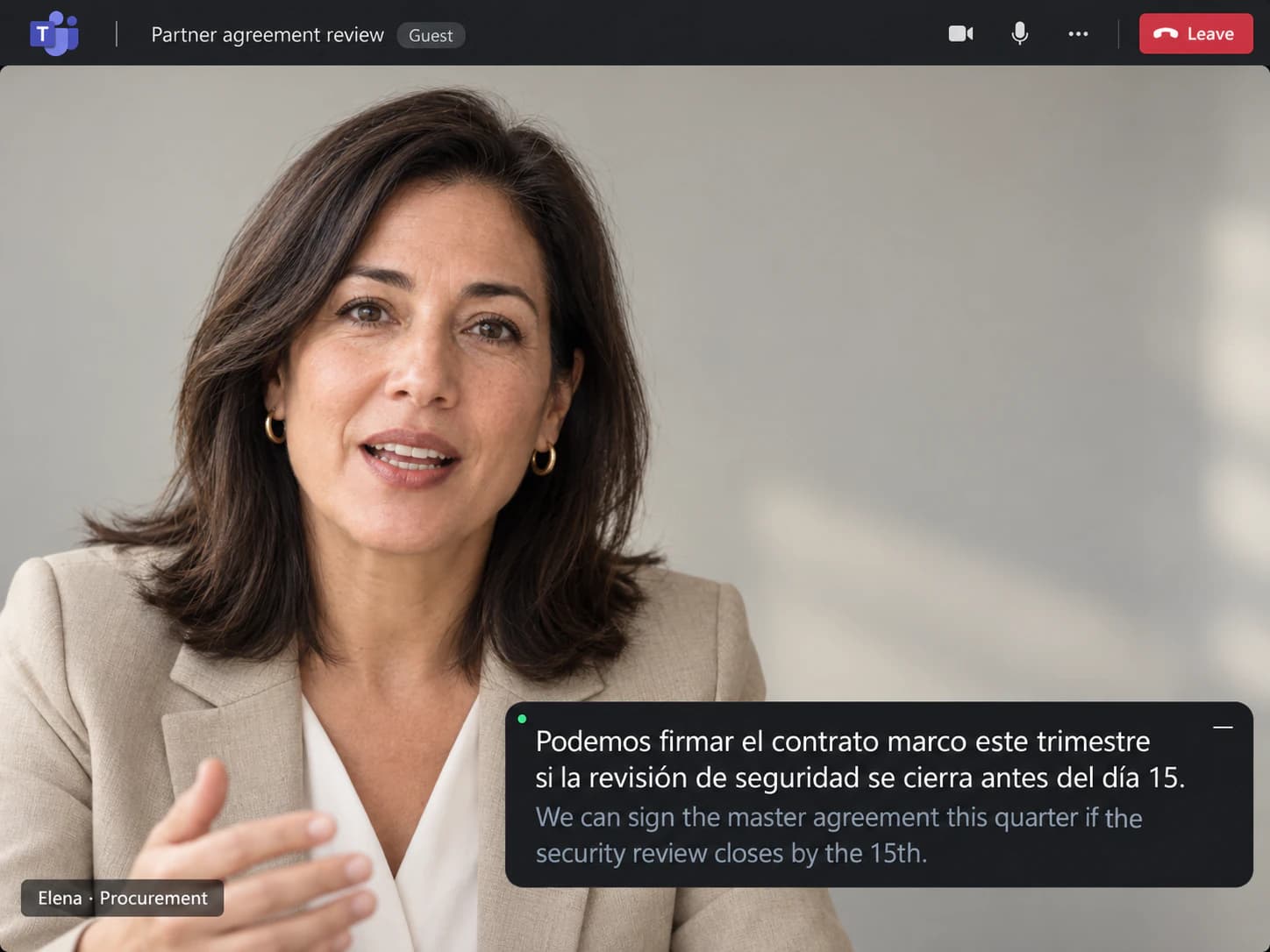
Meeting in another company's tenant
You are the guest. Their license decides whether Teams translates. SonicMeet does not ask.
SonicMeet shows bilingual, real-time captions on your side of any Teams meeting, in the desktop app or in the browser. You turn it on yourself. No license, no admin ticket.
Free · Windows 10/11 · Works with the Zoom & Teams desktop apps
Free · macOS 14.2 or later · Apple Silicon & Intel
Free · Chrome & Edge · No download, no bot in your meeting
SonicMeet runs on desktop — open this page on your computer to install.
Joining from a browser instead? Get the extension →Joining from a browser instead? Get the extension →Also available as a Windows desktop app →Antes de repasar los tickets, ¿pueden confirmar todos que el lanzamiento sigue previsto para el jueves?
Before we go through the tickets, can everyone confirm the release is still on for Thursday?
Sí, pero el proveedor todavía nos debe la revisión de seguridad firmada.▍
Yes, but the vendor still owes us the signed security review.
I'm sharing my screen with the revised budget for Q2.
Comparto la pantalla con el presupuesto revisado para el segundo trimestre.
If you approve today, we can start the integration next week.▍
Si aprueban hoy, podemos empezar la integración la semana que viene.
Spanish, Chinese, Portuguese, Russian, Turkish, Arabic and 50+ other languages, either direction, live.
Four everyday situations, in the language pairs Teams users pick most often.
You are the guest. Their license decides whether Teams translates. SonicMeet does not ask.
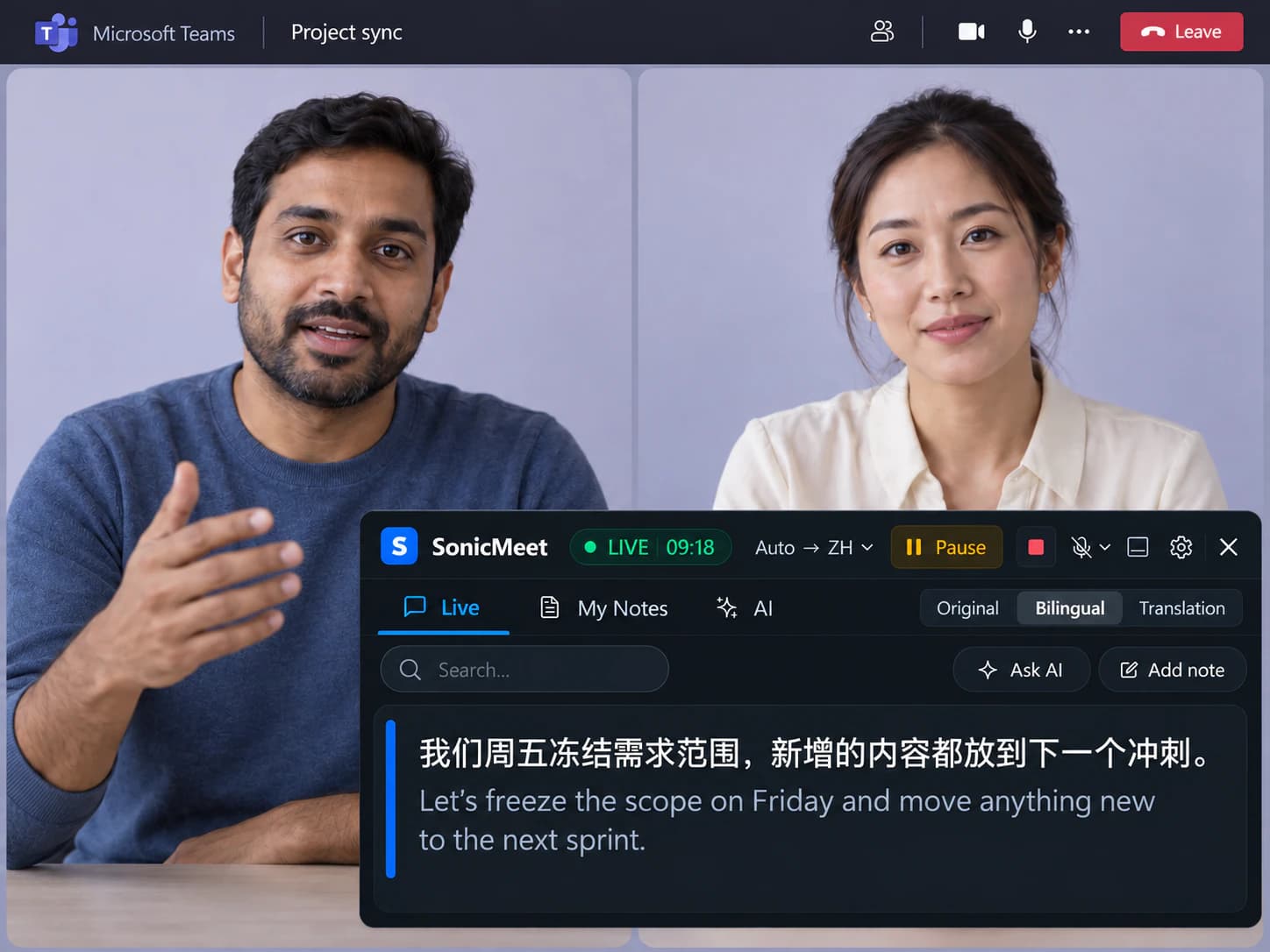
Fast talk, internal acronyms, a decision every two minutes. Read it as it happens.
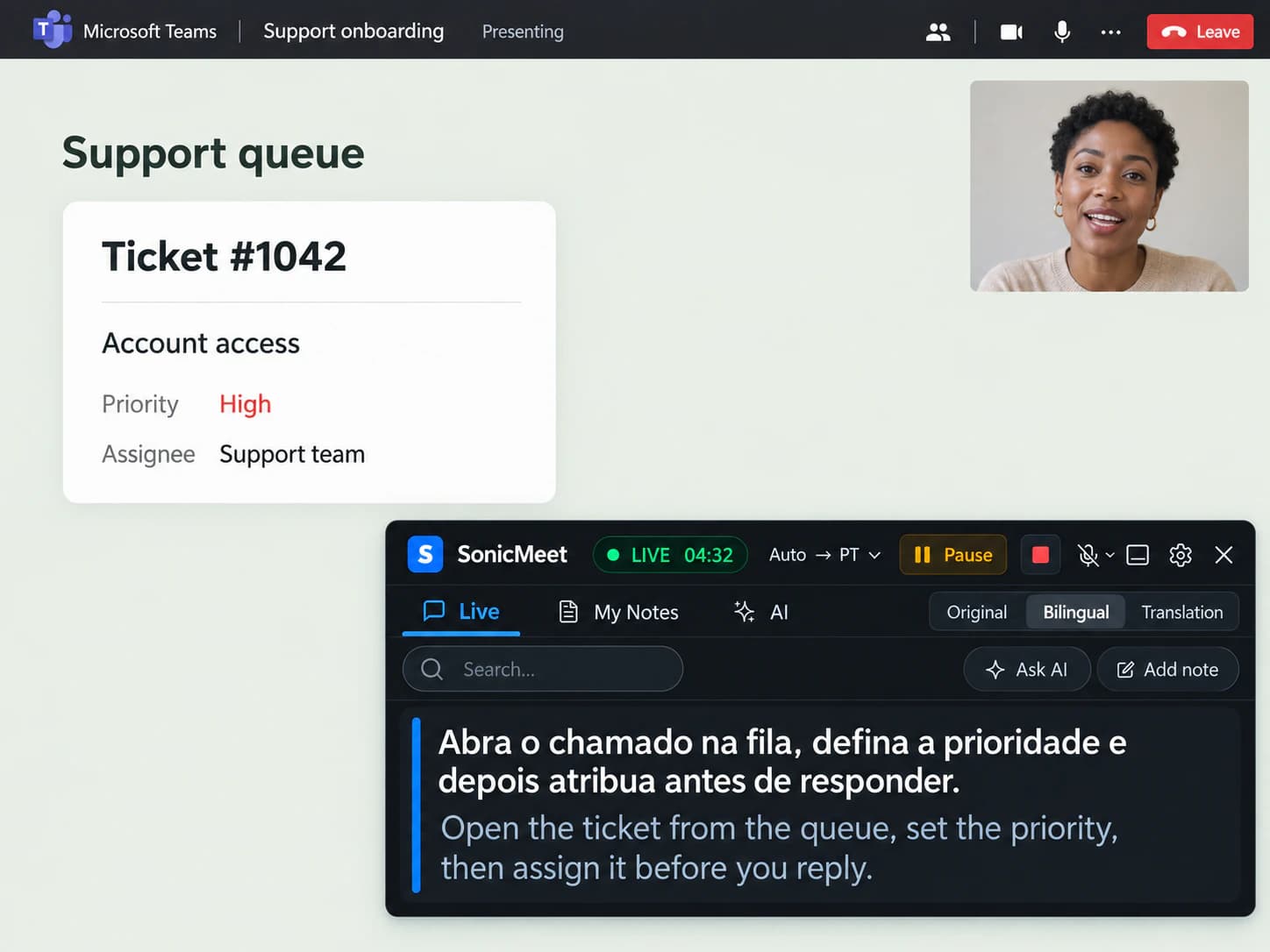
The trainer is on autopilot. Follow live, tap to save the steps as notes.
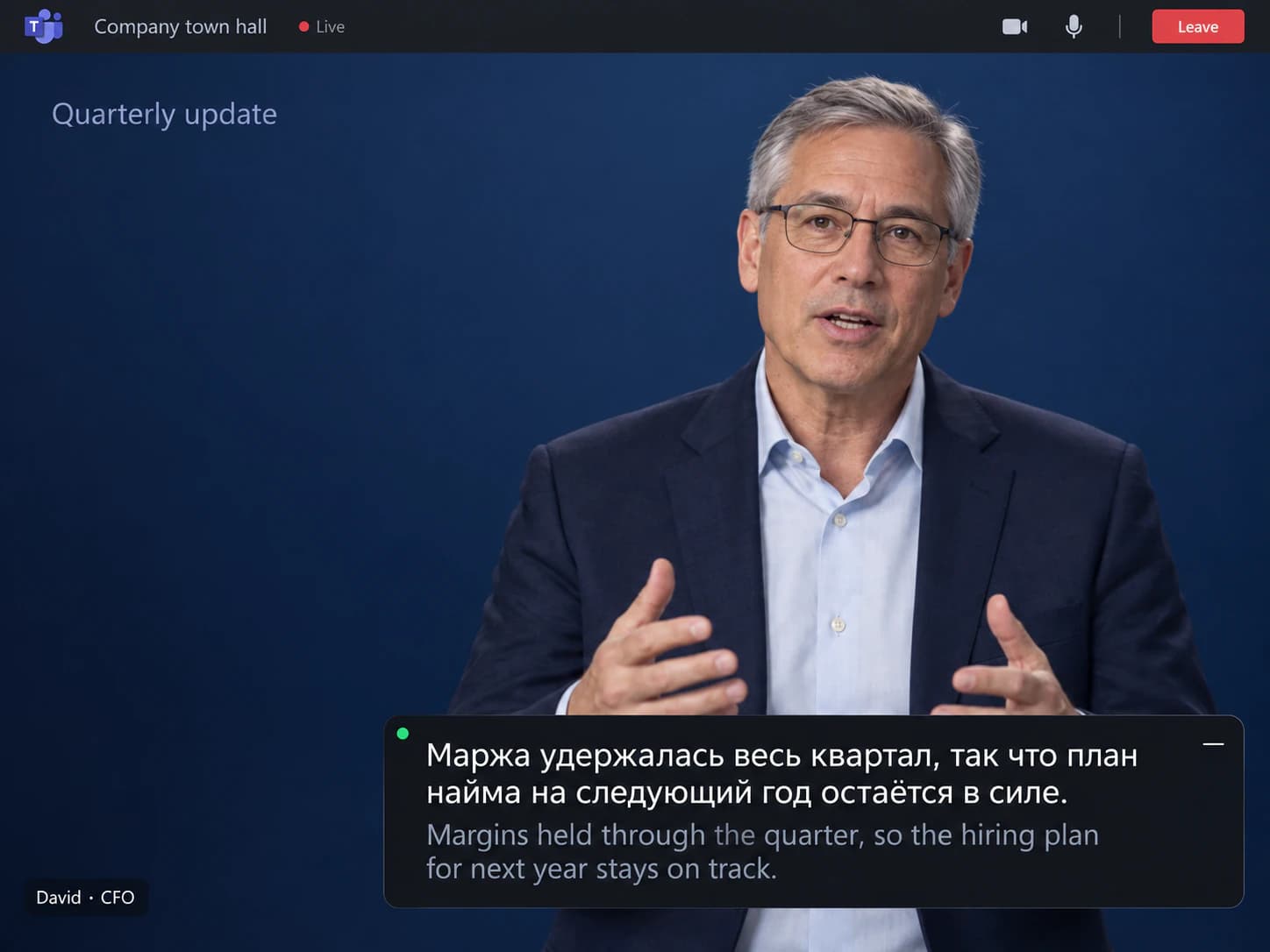
View-only, and Interpreter does not run in town halls. Captions do.
Sometimes. It depends on the organizer's license and your admin's policy.
| In your Teams meeting | Teams built in | SonicMeet |
|---|---|---|
| Captions in the spoken language | Yes, unless your admin turned captions off | Yes, on your side |
| Translated captions | Only if the organizer has Teams Premium or Copilot; 40 languages | Included, any of 60+ languages |
| Translation and original together | Translation only | Bilingual, original under each line |
| Translation as spoken audio | Yes, Interpreter: ten languages, organizer needs Copilot or Premium | Not yet — text, not voice |
| In a meeting another company hosts | Depends on their license, not yours | Works the same |
| On a personal or Teams Free account | Captions only; Premium is not sold for personal accounts | Full translation |
| Speed vs. accuracy | One fixed mode | Instant or Accurate, switch mid-call |
| Transcript after the call | Not saved; a transcript needs admin policy and an organizer or presenter to start it | Kept on your side, searchable |
Based on Microsoft's published requirements for translated captions, Interpreter and transcription in Teams. · Last checked September 22, 2026
Captions in the spoken language
Translated captions
Translation and original together
Translation as spoken audio
In a meeting another company hosts
On a personal or Teams Free account
Speed vs. accuracy
Transcript after the call
Based on Microsoft's published requirements for translated captions, Interpreter and transcription in Teams. · Last checked September 22, 2026
Organizer has Teams Premium or Copilot: everyone can pick a caption language. Organizer does not: nobody can, and your own license changes nothing. Your admin can also switch captions off entirely.
Ten languages, spoken aloud, and everyone can see it running. Organizer needs Copilot or Premium; not available in town halls, webinars or Teams Free. SonicMeet is text, bilingual, in 60+ languages.
It depends on how you join, not on your Teams license.
Captions the audio of the Teams window. Works with the client your company installed, and changes nothing inside Teams.
Captions overlay the Teams tab, nothing to download. Every invite offers “Continue on this browser”.
If Teams opens in its own window, it is the desktop app.
About a minute, once.
Desktop app for the Teams client, extension for the browser. Sign in with Google; free to start.
Join as usual, open SonicMeet, pick the language you read. Nothing to ask the organizer or your admin for.
Translation above, original below. Tap any line to save it as a note.
Antes de repasar los tickets, ¿pueden confirmar todos que el lanzamiento sigue previsto para el jueves?
Before we go through the tickets, can everyone confirm the release is still on for Thursday?
Sí, pero el proveedor todavía nos debe la revisión de seguridad firmada.▍
Yes, but the vendor still owes us the signed security review.
Both on every plan, switchable mid-meeting from Settings in the caption area.
Translates as the words arrive, with sub-second delay, so you can answer in the flow of the conversation.
Best for: standups, project syncs, everyday internal meetings.
Waits for the full sentence and uses a stronger model with far more context, so technical terms and names land right. Runs roughly 1 to 5 seconds behind Instant.
Best for: town halls, vendor negotiations, architecture reviews, anything full of domain terms.
Per-language guides: what works as the spoken language, and as the translation.
Yes, but only when the meeting organizer has a Teams Premium or Microsoft 365 Copilot license. Then every participant can turn on live captions and pick a language under “Translate to”, from about 40 languages. If the organizer has neither license, nobody in that meeting can translate, and if your admin has turned live captions off, you get no captions at all. SonicMeet gives you translated captions from your own side without any of that, in the desktop app or in the browser.
No. SonicMeet does not read Teams licenses or settings; it captions the meeting audio on your side. Buying Teams Premium for yourself would not help anyway: Microsoft checks the organizer's license, so it changes nothing in meetings other people schedule.
Yes, and that is where Teams' own translation is most often missing. When you join as a guest or from another tenant, their organizer's license and their admin's policies decide what Teams shows you, and as a guest you cannot start transcription either. SonicMeet works the same in every meeting you can hear: turn it on yourself, read in your language, keep your own transcript.
SonicMeet is not a Teams app. It does not appear in the Teams admin center, does not change any meeting policy and does not touch your tenant, so there is nothing for an admin to switch on. It is software on your own computer, so on a company-managed device follow your company's rules for installing programs or browser extensions.
Both. SonicMeet for Windows and Mac captions the audio of the Teams window, so you keep the Teams client you already use, including the version your company installed. If you join from Chrome or Edge through the “Continue on this browser” option, the extension does the same job in the tab.
Interpreter speaks a translation aloud in ten languages so far: English, Spanish, Portuguese, Japanese, Simplified Chinese, Italian, German, French, Korean and Traditional Chinese. It needs the organizer to have a Copilot or Teams Premium license, it is not available in town halls, webinars or Teams Free, everyone in the meeting can see that speech is being translated, and it leaves no text behind. SonicMeet is text in any of 60+ languages, with the original line under each translation, tap-to-save notes and a transcript, so numbers, names and decisions are still there after the call.
No. Teams notifies everyone when someone starts transcription and shows an indicator when Interpreter is on, because those run inside the meeting. SonicMeet is not a Teams app and not a bot: it does not use Teams' transcription, nothing appears in the participant list and no notice goes to anyone. Captions render on your screen only, and we don't keep an audio recording.
No. SonicMeet transcribes the meeting audio itself, so Teams' captions can stay off, or on if you prefer. It does not read or depend on them, which also means it works when your admin has set live captions to Off.
Yes. SonicMeet captions whatever you can hear on your computer, so it works as a view-only town hall attendee, in a webinar, and on a personal Teams Free account. Interpreter does not run in any of those. A town hall can still show translated captions, but only in the languages the organizer preset: up to six, or ten with Teams Premium, not the roughly 40-language picker of a normal meeting. Teams Free stays on captions in the spoken language. The one case SonicMeet cannot cover is dialing in by phone, because no audio reaches your computer.
SonicMeet has two translation modes and you choose per meeting; Teams' translated captions offer a single fixed one. Instant translates as the words arrive with sub-second delay. Accurate waits for the complete sentence and translates it with a stronger model and far more surrounding context, which makes a visible difference on technical terms, product names and natural phrasing, roughly 1 to 5 seconds behind Instant. Switch from Settings in the caption area at any time.
Yes. A Teams transcript needs transcription allowed by your admin's policy, started by the organizer or a presenter, and it is stored in the organizer's OneDrive, not yours. SonicMeet keeps a transcript on your side in every meeting, and you can tap any caption line during the call to save it as a note.
Yes to start. Install SonicMeet, sign in with Google, and the Free plan gives you 20 minutes a month of captions with both translation modes. Paid plans add hours. There is no Teams Premium or Copilot license to buy, for you or for the organizer.
Same captions, same notes, on the other apps your team lives in.
Free to install, about a minute to set up, and nobody else has to do anything.
