Get started with the desktop app for Windows and Mac
The desktop app captions whatever your computer is playing: the Zoom and Teams desktop apps, meetings in your browser, and anything else with sound.
Install
| Windows | Mac | |
|---|---|---|
| Needs | Windows 10/11, 64-bit | macOS 14.2 or later, Apple silicon or Intel |
| You download | An installer (.exe), or the app from the Microsoft Store | A disk image (.dmg) for your chip |
| Security | Digitally signed by XTCodeTech Ltd | Signed and notarized |
- 1Download the app
Open the download page and pick Windows or Mac. On a Mac, choose Apple silicon or Intel: Apple menu → About This Mac tells you which chip you have.
- 2Install it
On Windows, run the installer and follow the steps. On a Mac, open the disk image and move SonicMeet to your Applications folder.
Sign in with Google
- 1Click Sign in with Google
Your default browser opens Google's sign-in page.
- 2Finish signing in, then come back
When the browser tab says Authorization complete, close it and return to SonicMeet. Use the same Google account as the extension: your plan, minutes and history are shared.
Start captions
- 1Start your meeting
Join in the Zoom or Teams desktop app, in your browser, or in any other app with sound. SonicMeet listens to everything your computer plays, not to one app.
- 2Choose your languages
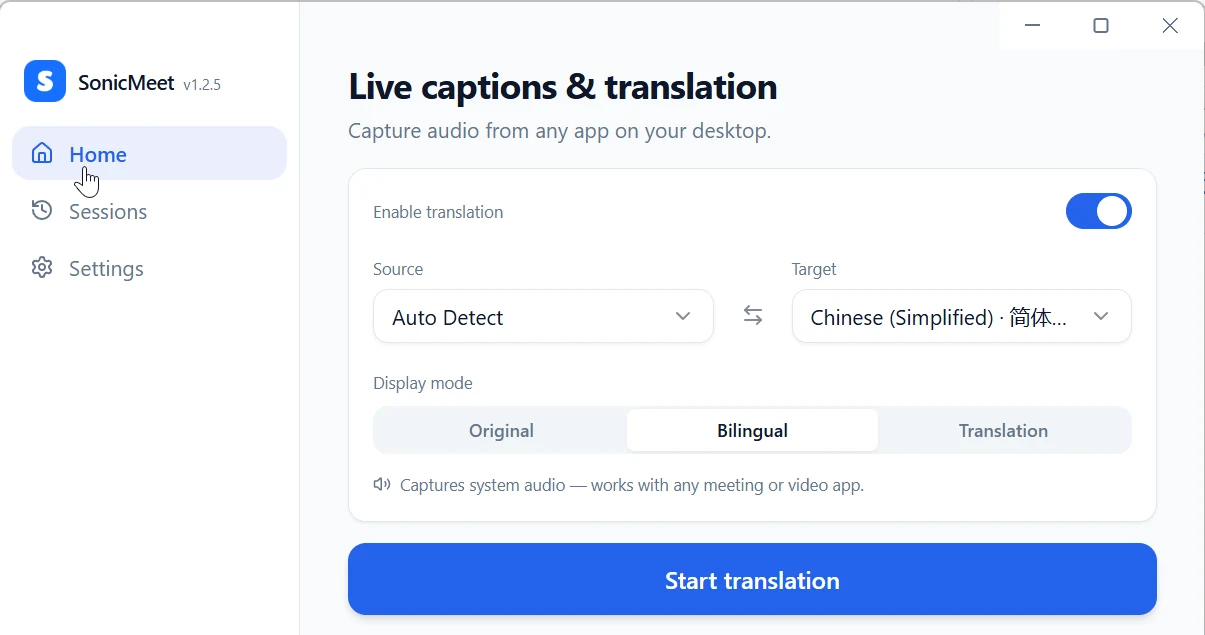
Source can stay on Auto Detect; if the speakers mostly use one language, choosing it yourself is more accurate. For translated captions, leave Enable translation on and pick a Target. Display mode sets whether you see the original, both languages, or the translation only.
- 3Click Start translation
On a Mac, macOS asks the first time whether SonicMeet may capture system audio: allow it. Captions appear in the app within a second or two.
During the meeting
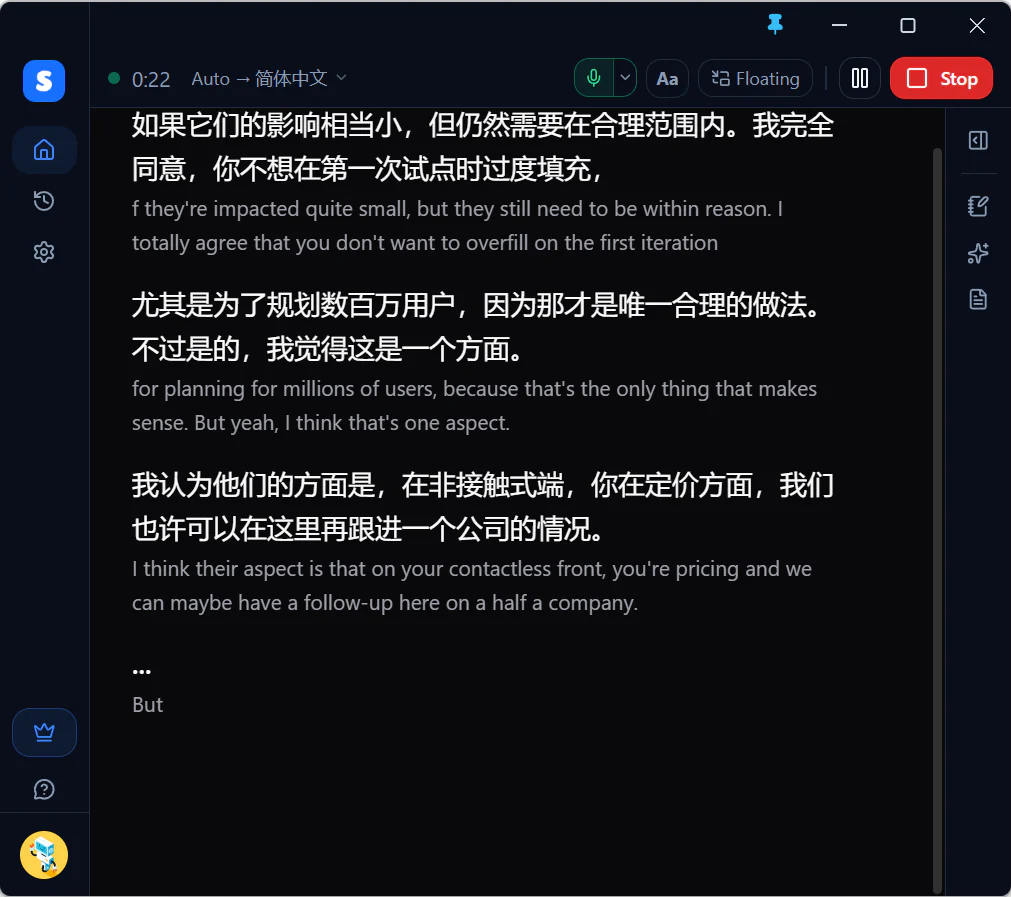
- Captions appear in the main window beneath the live bar. Floating opens the compact subtitle-style display shown below in a small window that stays on top of other apps, even full-screen ones. It also appears when you minimize the main window mid-session. Point at it for its controls; Open app brings the main window back. See Compact Mode in the extension and desktop app.
- Pause stops sending audio, so no minutes are used. Stop ends the session and saves it to Sessions.
- The microphone button in the live bar adds your own voice to the captions. It's off by default; on a Mac, macOS asks for microphone access the first time.
- Shortcuts work even when SonicMeet is in the background: Alt+Shift+S starts and stops (to stop, press it twice within 3 seconds) and Alt+Shift+P pauses and resumes. On a Mac they're ⌥⇧S and ⌥⇧P. Change them in Settings → Keyboard shortcuts.

Good to know
- Closing the window doesn't quit SonicMeet: it keeps running in the tray (the menu bar on a Mac), where you can show captions, pause, stop or quit.
- Launch app at login is on by default, so SonicMeet starts when you sign in to your computer. Turn it off in Settings → Application.
- Auto stop when idle is on by default: if no captions arrive for 5 minutes (you can choose 3 to 30), SonicMeet counts down 10 seconds and stops, unless you click Keep going.
- Updates download on their own and install when SonicMeet restarts. See The desktop app won't update if they don't.
Common questions
Can I choose which app SonicMeet listens to?
No. The desktop app captures everything your computer plays. Pause music and videos during a meeting so they don't end up in the captions.
Does the desktop app use the same account as the extension?
Yes. Sign in with the same Google account and the extension and the desktop app share your plan, minutes, AI credits and saved sessions.
Can other people see my captions?
Only if you share your screen with the captions visible: the floating captions window appears in screen shares and screenshots. SonicMeet doesn't join the call or post anything in the meeting.