Team billing, shared hours and usage
A team shares one pool of hours and AI credits. Here's how the pool fills up, what gets used first, and how owners and admins add more.
How the shared pool works
- Each seat adds 15 hours and 60 AI credits to the pool. Monthly shared hours you add on the Billing page go into the same pool.
- Everyone on the team draws from the pool. Members don't use their personal minutes while they're on the team.
- The pool resets to its full size at each renewal; unused hours and AI credits don't carry over.
- One-time extra hours are used only after the pool runs out, and they never expire.
- When the pool and any extra hours run out, live sessions stop for the whole team, and members are asked to contact their admin.
Overview
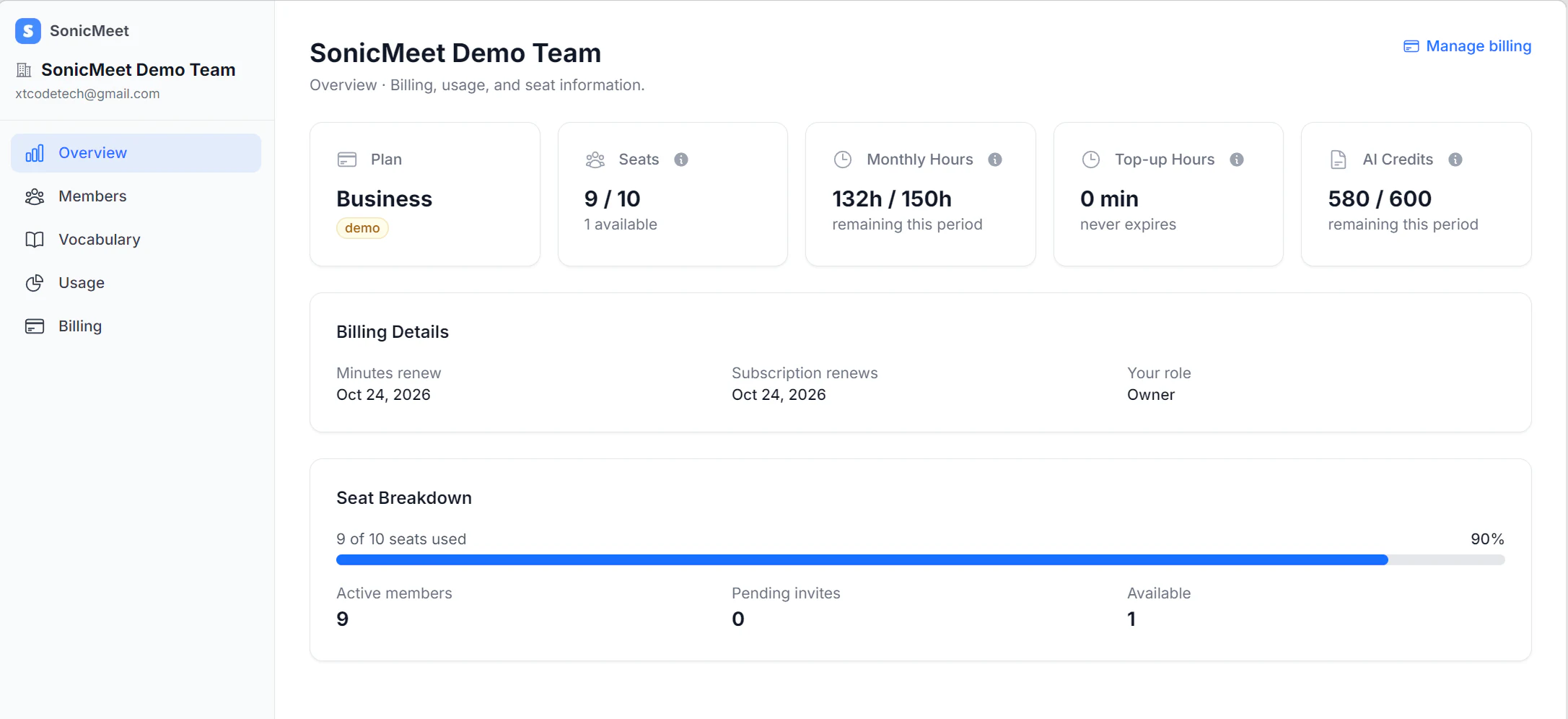
Overview shows the plan at a glance: seats in use, the shared hours and AI credits left in this billing period, and any one-time extra hours. Below that are your renewal dates, your role, and a breakdown of active members, pending invitations and free seats.
See who uses what
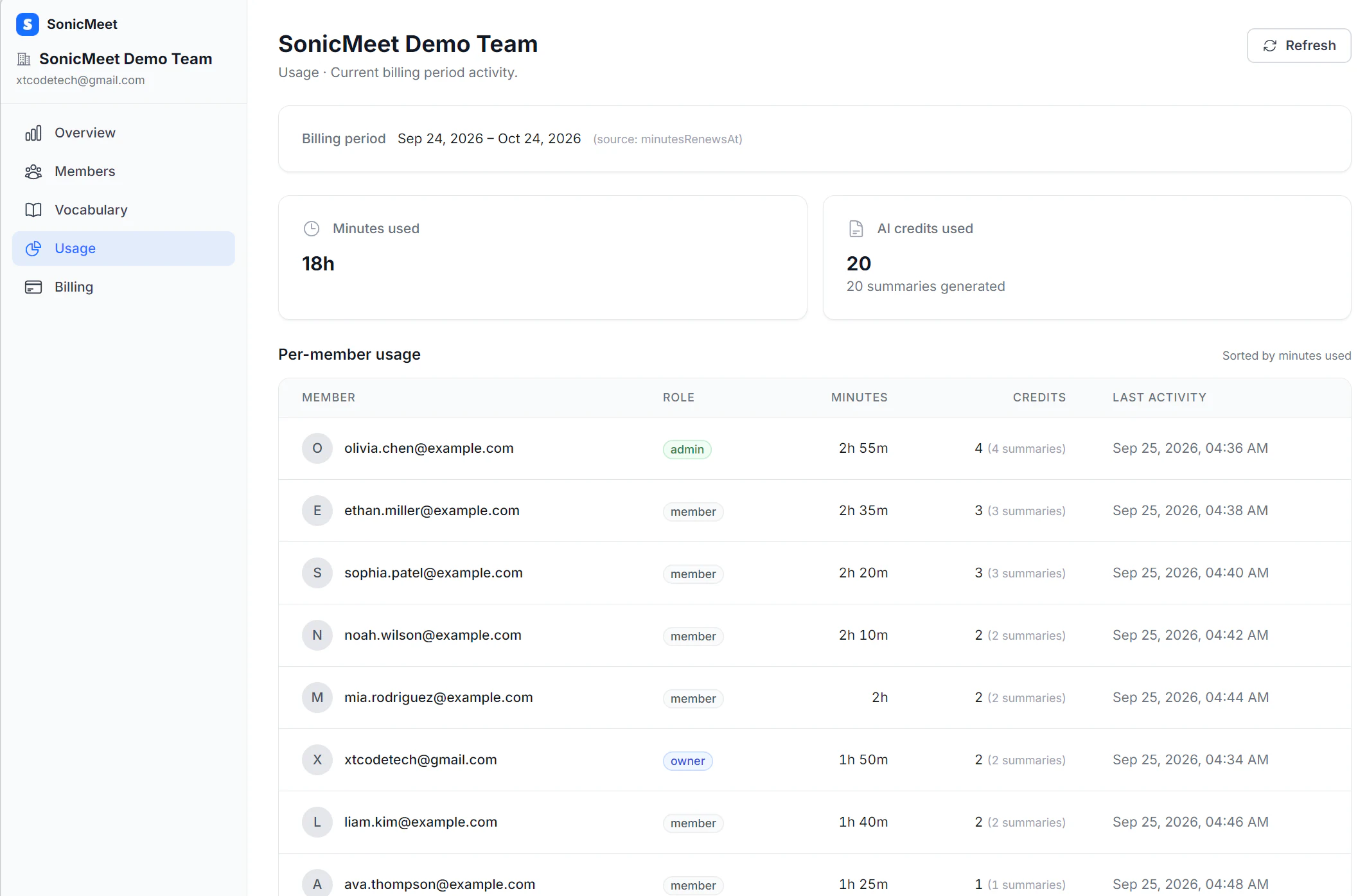
Usage (admins and owners) breaks down this billing period's hours by member, so you can see where the team's time is going.
Add seats or hours
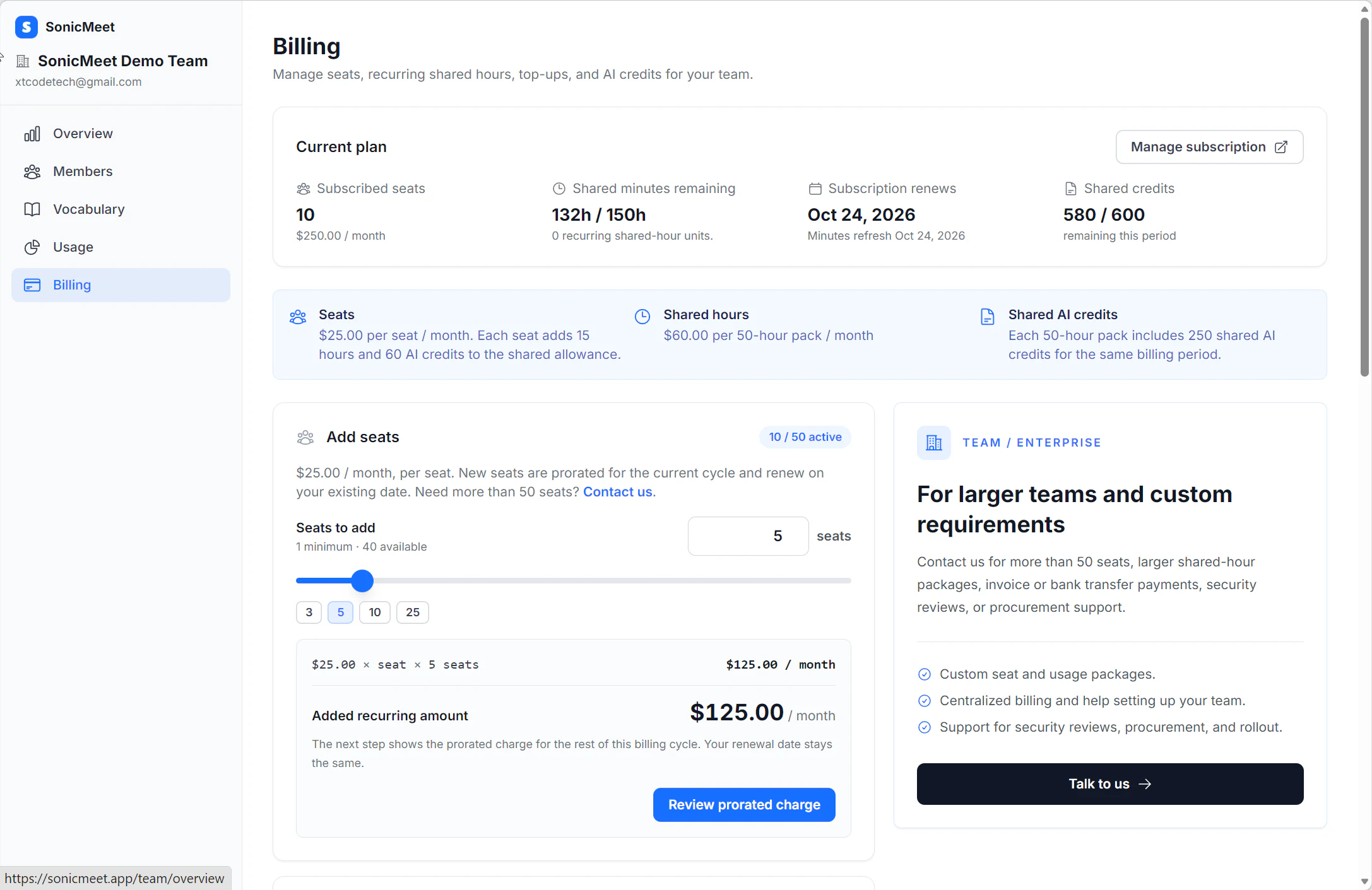
Teams that pay by card have a Billing page for admins and owners. The actions there are labeled in English in every language:
- Add seats or Increase monthly shared hours. Before you confirm, you see the prorated charge for the rest of the current billing period; your renewal date stays the same.
- Buy one-time extra hours. They're used after the shared pool runs out and stay available until used.
- Manage subscription opens Stripe, where you update the card, download invoices, or cancel.
Teams on a custom plan don't see this page: we handle their billing directly, so contact us for any change.
If a payment fails
Overview shows that the payment failed, and members can't start live sessions until an owner or admin updates the card under Billing → Manage subscription. Access comes back automatically once the payment goes through.
Common questions
Do unused team hours roll over?
No. The shared pool resets to its full size at each renewal. One-time extra hours are the exception: they never expire.
Can I see how much each member uses?
Yes. Owners and admins see each member's hours for the current billing period on the Team Dashboard's Usage page.
What happens when the team runs out of hours?
Live sessions stop for everyone on the team, and members are asked to contact their admin. An owner or admin can add monthly shared hours or buy one-time extra hours on the Billing page, and members can start again.