Invite and manage team members
Use the Members page to see occupied seats, roles and join dates, invite teammates, and manage pending invitations. The Vocabulary page lets you share custom terms with everyone.
Roles
The dashboard lives at sonicmeet.app/team, and only owners and admins can open it. Members don't need it: they simply use SonicMeet with their team seat, in the extension or the desktop app.
| Role | What they can do |
|---|---|
| Member | Uses SonicMeet with a team seat. Can't open the dashboard. |
| Admin | Opens the dashboard: invites and removes members, manages pending invites, edits vocabulary, views usage, and manages billing. |
| Owner | Everything an admin can do, plus inviting and removing admins. |
Invite people
- One person: on the Members page, click Invite, enter their email and choose a role.
- Several people: click Bulk Invite and paste a list of emails.
- Each invitation holds a seat until it's accepted or cancelled.
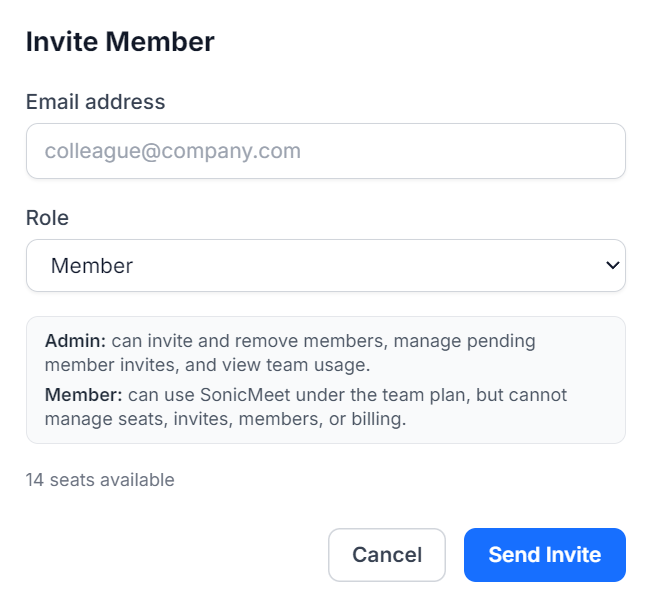
Everyone you invite gets an email from SonicMeet, whether you invite them one by one or in bulk:
- People who already use SonicMeet with that address are added right away. Their email says they've joined the team, and their next sessions use the team's hours.
- Everyone else gets an invitation email. To join, they install SonicMeet, sign in with the invited address and start captions once; Join your team's SonicMeet plan walks them through it.
- The pending list shows whether each invitation email was sent. If one failed or got lost, resend it from there.
Manage members and pending invitations
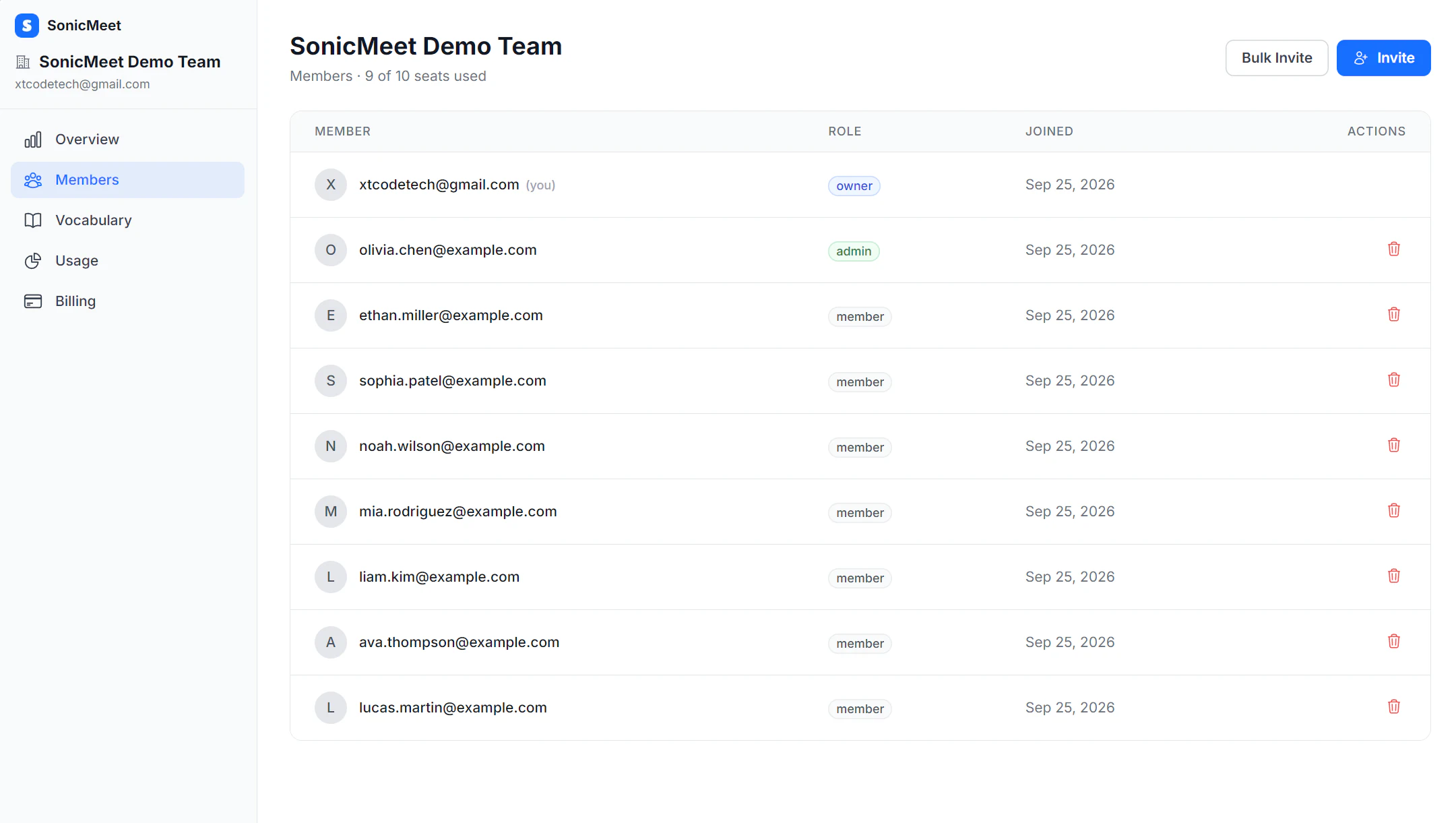
- The header shows seats used out of seats subscribed. Each active member and pending invitation uses one seat. The member table shows each person's email, role and join date.
- When there are pending invitations, Pending Invitations appears below the member list. Resend an email if needed, or cancel an invitation to release its seat.
- Use the red remove icon in a member's row to free their seat right away. You cannot remove yourself or the owner; admins cannot remove other admins.
- Admins can invite and remove members. Only the owner can invite or remove admins. The Invite and Bulk Invite buttons are at the top of the page.
Shared vocabulary
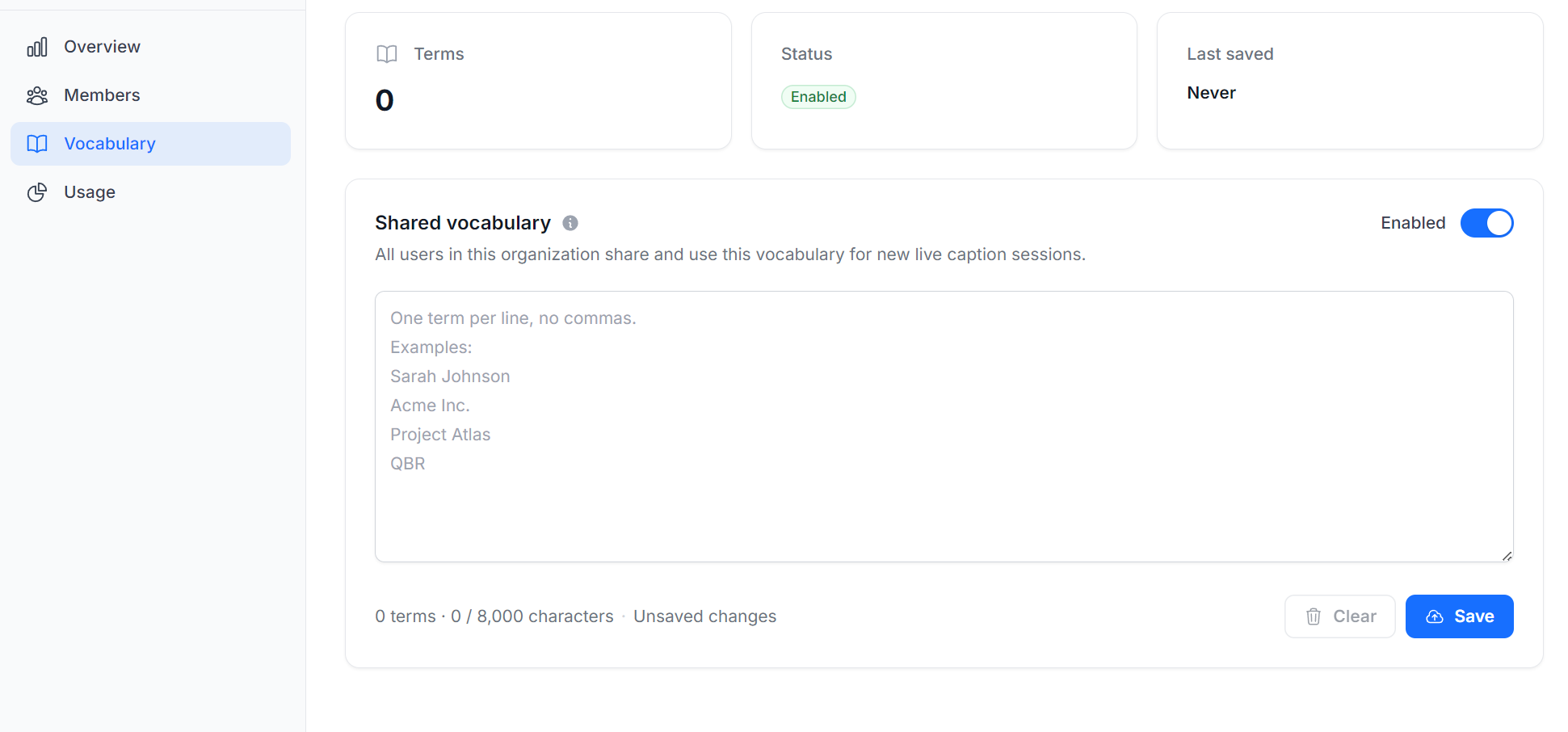
Vocabulary (admins and owners) holds the names, acronyms and product terms the whole team wants SonicMeet to recognize. Enter one term per line, without commas, and click Save. The switch turns the list off without deleting your terms.
Members don't need to do anything: the list applies to everyone's new sessions automatically, and shows up in their SonicMeet settings as Team vocabulary.
Common questions
Does a pending invitation use a seat?
Yes. Every pending invitation holds a seat until it's accepted or cancelled. Cancel invitations that won't be used to free their seats.
Someone didn't get the invitation email. What now?
Resend it from the pending list and ask them to check their spam folder. The email itself isn't required: if they sign in to SonicMeet with the invited address and start captions, they join the team.
Can an admin make someone else an admin?
No. Only the team owner can invite or remove admins. Admins can invite and remove members.