Get started with the browser extension
Install it, sign in, and start captions on the tab your meeting is in. A few minutes, most of it the install.
Install and sign in
SonicMeet runs in Chrome, Edge and Brave. All three install the same extension from the Chrome Web Store; there is no separate Edge listing.
- 1Add SonicMeet, then pin it
Get it from the download page. In Edge, click Allow extensions from other stores the first time you're asked. Then pin SonicMeet from the puzzle-piece menu in the toolbar so it's one click away.
- 2Sign in with Google
Click the SonicMeet icon and choose Continue with Google. A Google account is required. New accounts get 20 free minutes of live captions to try SonicMeet.
Start captions on your meeting
- 1Open your meeting in a browser tab
Any meeting platform that runs in the browser works: Google Meet, Zoom, Microsoft Teams, Webex, Slack huddles and others. So does any other tab that plays sound, such as a webinar or a video. SonicMeet listens to one tab: the one you start it on.
- 2Choose your languages
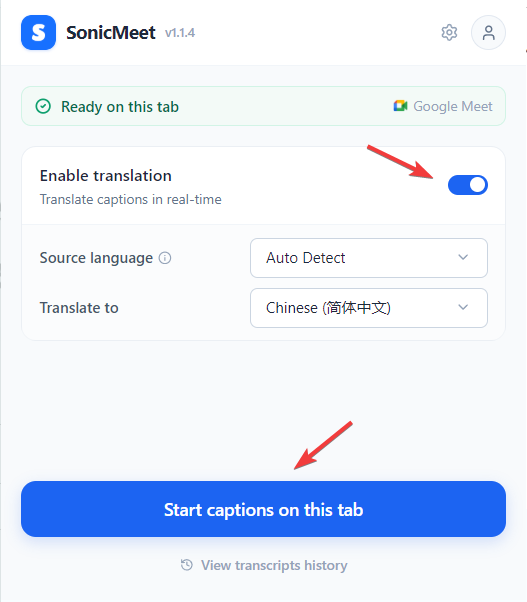
Auto Detect works well as the Source language. If the speakers mostly use one language, choosing it yourself can improve accuracy. For translated captions, turn on Enable translation and pick a Translate to language; leave it off to get captions in the language being spoken.
- 3Click Start captions on this tab
The caption panel opens on the meeting page, and captions arrive within a second or two.
Find your way around the panel
- Live shows the captions. Switch between Original, Bilingual and Translation in the top bar.
- My Notes holds the notes you take during the call.
- AI summarizes the meeting so far and answers your questions about it.
- Pause stops sending audio, so no minutes are used. Stop ends the session and saves it to your history.
- Compact caption bar, the icon just left of the settings gear, shrinks the panel to a subtitle-style bar that covers less of the meeting. Double-click the bar to get the full panel back. See Compact Mode in the extension and desktop app.

Translation modes, text size, your own voice and the other settings are covered in Captions and translation.
Using the Zoom or Teams desktop app?
The extension can only hear audio from a browser tab. If you join meetings in the Zoom or Microsoft Teams desktop app, use SonicMeet for Windows or Mac instead: same account, same minutes. See Get started with the desktop app, or Extension or desktop app? if you're not sure which you need.
Common questions
Which browsers does the extension work in?
Chrome, Microsoft Edge and Brave. All three install it from the Chrome Web Store; Edge asks you once to allow extensions from other stores.
Which meeting platforms does the extension work with?
Any meeting platform that runs in a browser tab, including Google Meet, Zoom, Microsoft Teams, Webex and Slack huddles. SonicMeet captions the tab's audio, so it doesn't depend on the platform. For meetings in a desktop app, use the SonicMeet desktop app instead.
Can other people in the meeting see that I'm using SonicMeet?
No. SonicMeet doesn't join the call or post in the chat, and the captions only show on your screen, unless you share your screen while they're visible.
Is SonicMeet free to try?
Yes. New accounts get 20 free minutes of live captions and 3 AI credits for summaries and Ask AI. You sign in with a Google account; no card is needed.